Tasks: Create and Run
A Task is a work order written in Markdown: what to achieve, how many cycles, which files it must produce, and the numbered steps to get there. Tasks are not part of an Agent package—they are created afterwards, against an Agent that already exists.
Task.md format
Copy a blank Task.md
---
schema_version: "1.0"
---

# <Task Title>
version:
author:
date:

## Goal
<what this Task is for>

## General Setting
- cycle: <integer>
- retry: <integer>

## Expected Outputs
- `outputs/<file-name>`

## Execution Procedure

## Step 1
- name: <step name, max 64 characters>
- prompt: <instruction for the Agent>
- on failure: stop | continue
- execute: `<full command — optional, but a step without one can only talk>`
- check: `<check command; needs an execute>`
- note: <extra rules>

## Final Verification
- execute: `<full command>`
- success condition: <what counts as success>
| Item | Rule |
|---|---|
cycle / retry | A failed cycle retries the whole procedure. If every retry fails, that cycle is failed and the next cycle still runs. |
| Expected Outputs | Optional workspace-relative paths created by the Task. A bare file name is resolved under outputs/, here and in every command that names it; write a path of your own to put it elsewhere. The platform only checks them; it never creates, copies, moves, or publishes them. |
| Model | Tasks must be verified to run on a small model. |
The file must start with the frontmatter schema_version: "1.0", followed by one H1 title. Under the title you may add version, author, and date (optional). Every other section is an H2:
| Section | Required | Purpose |
|---|---|---|
| Goal | Yes | What the Task sets out to achieve |
| General Setting | Yes | cycle is the number of rounds; retry is how many times a failed round is retried. Both must be whole numbers, 0 or more |
| Expected Outputs | No | Workspace-relative paths checked on completion. A bare file name is resolved under outputs/, here and in every command that names it; write a path of your own to put it elsewhere. The platform only checks; it never produces a file. When paths are filled in, a single missing file makes the run failed. May be left empty, in which case only the Final Verification result counts: it must exit 0. |
| Execution Procedure | Yes | Holds ## Step 1, ## Step 2, and so on, numbered from 1 with no gaps or repeats |
| Final Verification | Yes | The last check, after every step has run. execute (required) is the check command, which passes only with exit code 0; success condition (optional) describes success in words |
The fields of each Step:
name(required): the step's name, 64 characters at most.prompt(required): what the model should do in this step. With only aprompt, the model decides how to get it done.on failure(required):stopto end the run, orcontinueto move on to the next step. No other value is accepted.execute(optional): a command this step must run, such asbash skills/hello-world/scripts/hello.sh, relative to the Agent workspace.check(optional): a command that verifies the step succeeded. It needs anexecute; acheckwithout one is rejected when the Task is created.note(optional): extra constraints.
If the format is wrong, creating the Task fails and shows the reason. For a complete example, see Build Your First Agent.
Create a Task
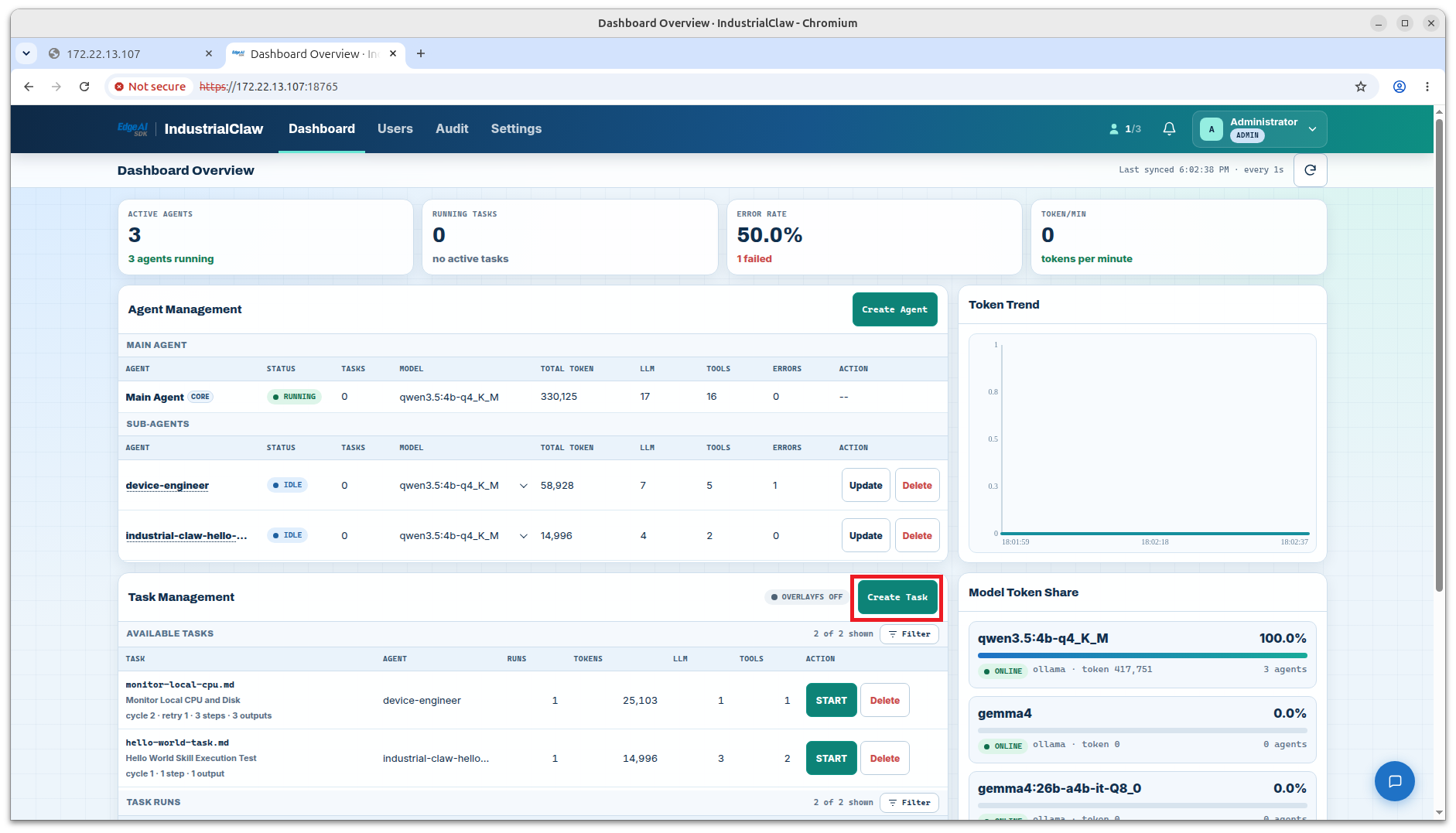
- Select Create Task under Task Management.
- Pick the target Agent.
- Choose the Task Markdown file.
- If the Task needs input files, put them in a ZIP and upload it under Material ZIP.
- Select Create, then find the Task under Available Tasks to confirm it was stored.
View: Create Task
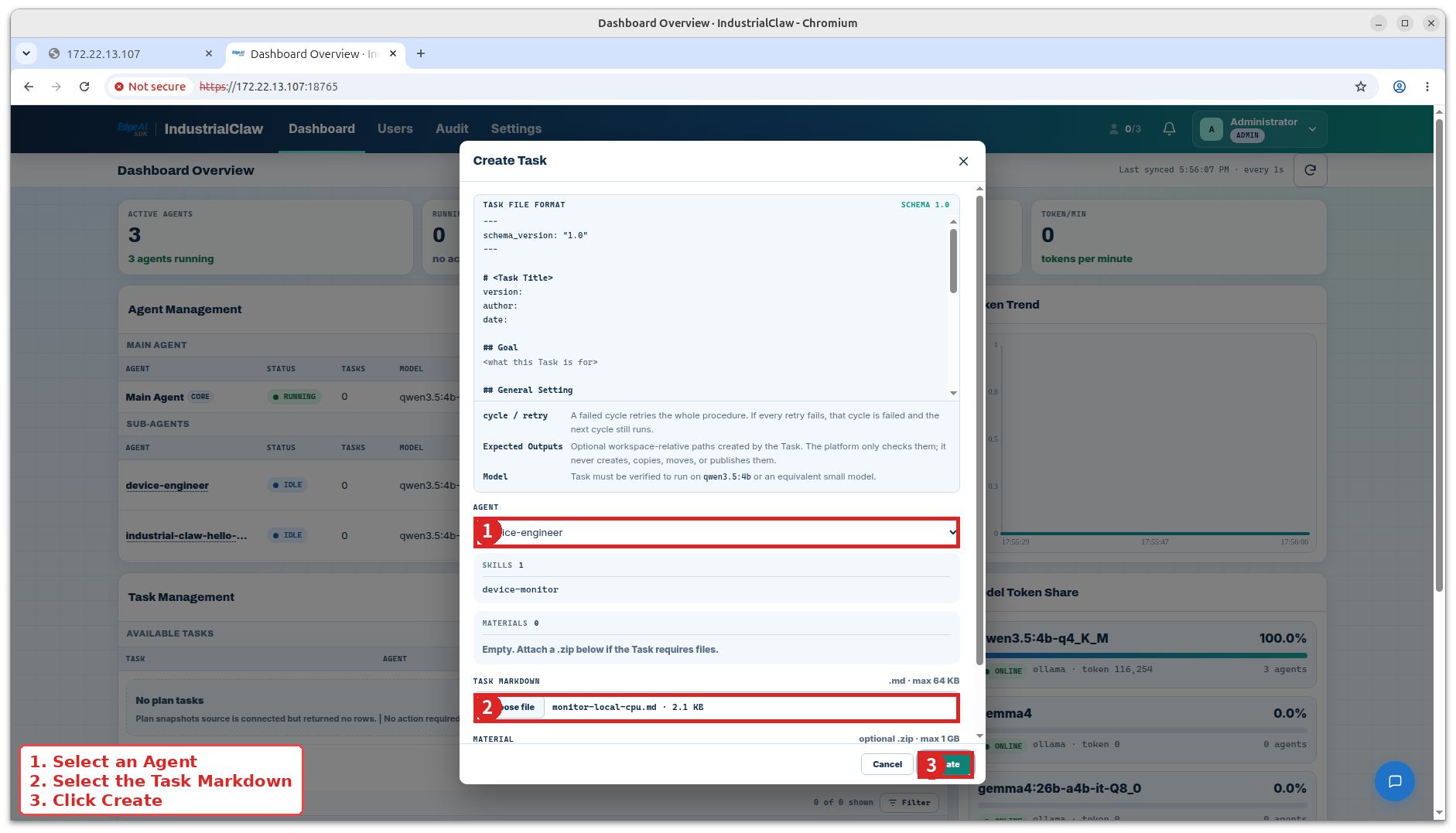
View create Task from the Dashboard
| Item | Limit |
|---|---|
| Task Markdown size | Up to 64 KB |
| Material ZIP size | Up to 1 GB, extracted into the Agent's materials/ |
| Same-named Material | Replaced; other existing files are kept |
| Who can do this | Administrators only |
The file's format and its declared output paths are checked at this point, so a Task that is accepted here is one the platform can actually run.
Start a run
Find the Task under Available Tasks and select START. The button shows STARTING… briefly, then a new record appears under Task Runs.
View: Start a Task
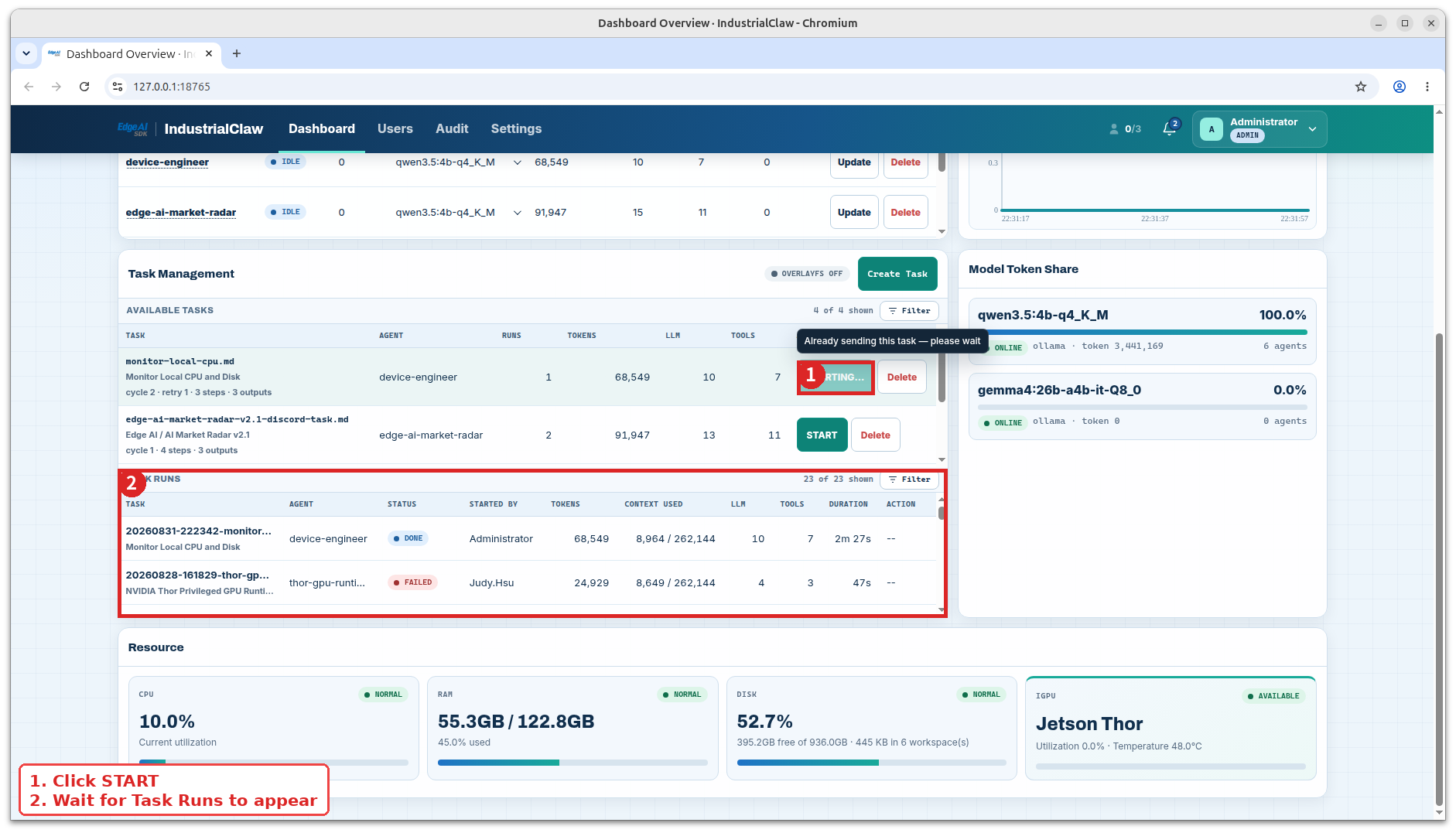
View task running
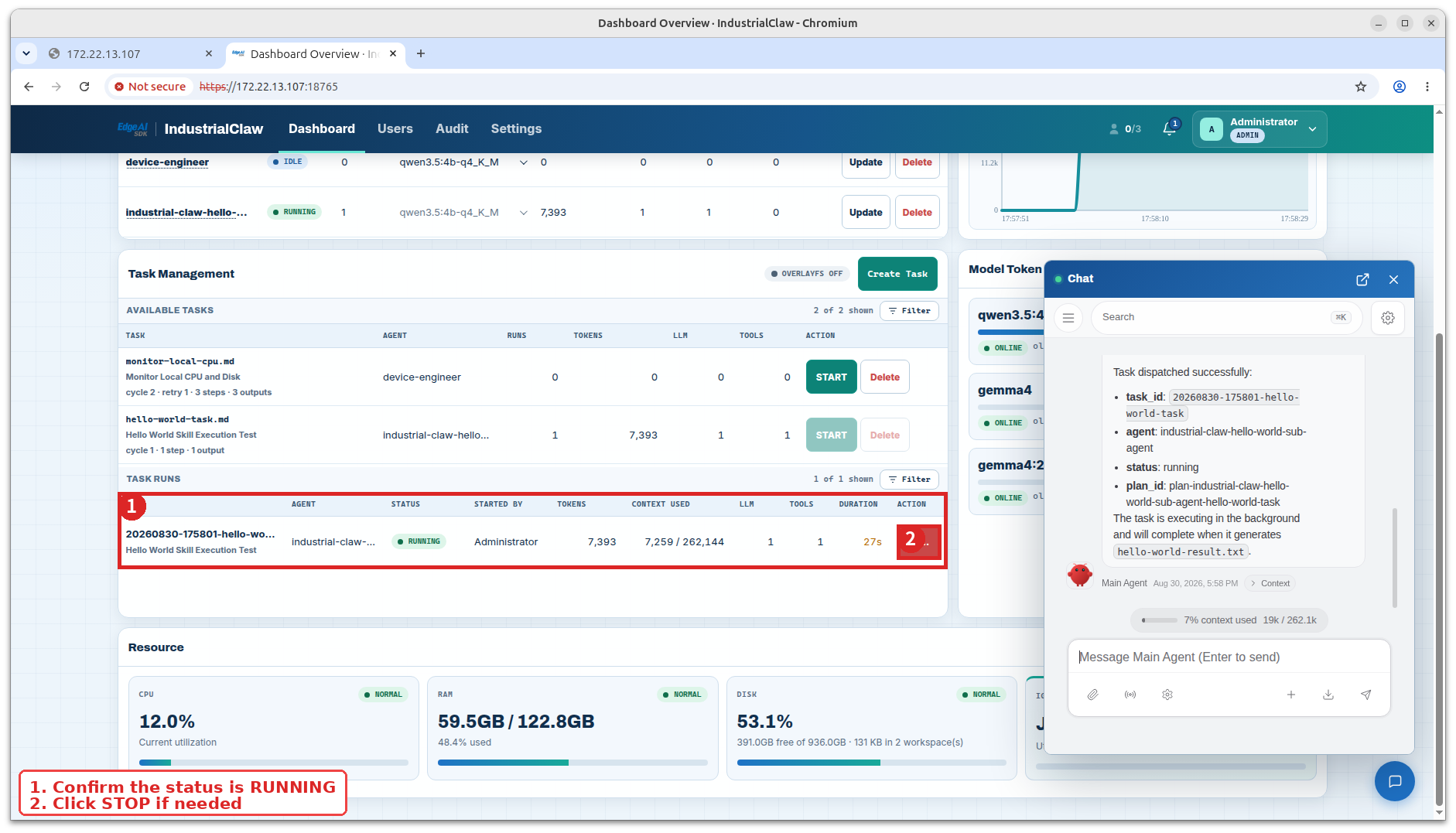
The run goes straight to running and ends as done or failed. START creates, claims, and dispatches it in one go—nobody has to start an Agent container by hand, and there is no waiting state in between.
While it runs, these are the fields worth watching:
| Field | Meaning |
|---|---|
| Status | running, done, or failed |
| Started By | The account that started it |
| Tokens | Token usage reported by the provider for this Task |
| Context Used | How much context the session is currently holding |
| LLM | How many model calls have been made |
| Tools | How many tool or Skill calls have been made |
| Duration | Time so far, or total time once finished |
A device runs up to 5 Agents with Tasks at once, and one Task per Agent. A Task for a sixth Agent is refused with a stated reason rather than queued, and a busy Agent does not accept a second Task.
Stop a run
Select STOP on the running row, check the Task ID and Agent, then confirm.
View: Confirm stop
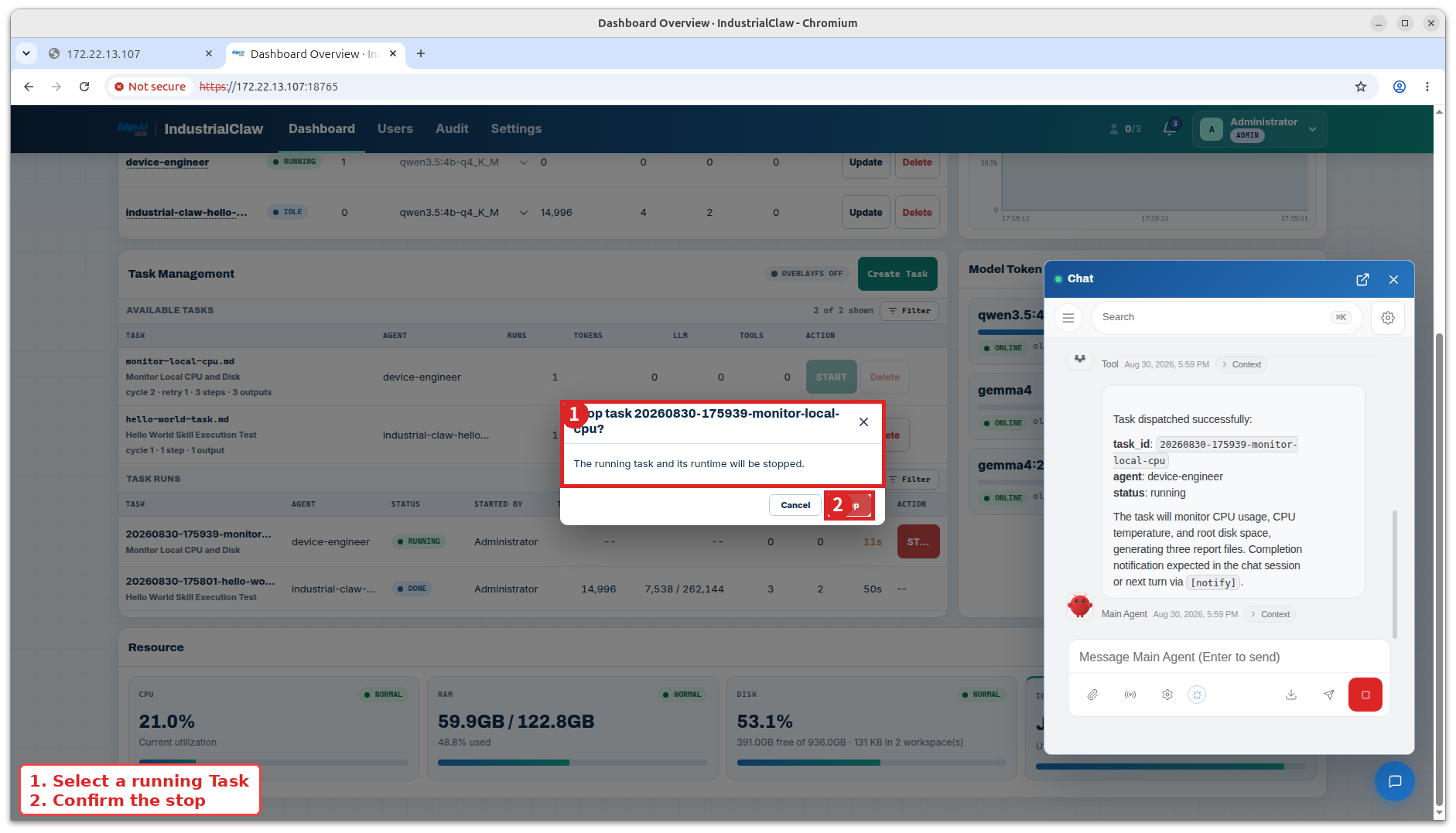
Anyone assigned to that Agent can stop its Task, regardless of who started it. Audit keeps both names—who started it and who stopped it.
Stopping ends the cycle without failing the Task outright: Final Verification and the declared outputs still decide the final result.
Filters and search
Available Tasks and Task Runs filter independently.
| Table | Filters |
|---|---|
| Available Tasks | Agent; Task filename, title, or plan ID |
| Task Runs | Agent; Status; Started by; Task ID, name, or plan ID |
Save applies the filters, Cancel leaves the table as it was, and Reset clears the dialog. Applied conditions stay visible as chips—remove one with its ×, or clear them all with Clear.
Available Tasks filters what is already on the page. Task Runs is a query against everything the device has recorded, returned a page at a time: use Load more at the bottom for the next page, and Clear to start over.
Delete a Task definition
Stop the Task first if it is running, then select Delete under Available Tasks and confirm.
View: Delete a Task definition
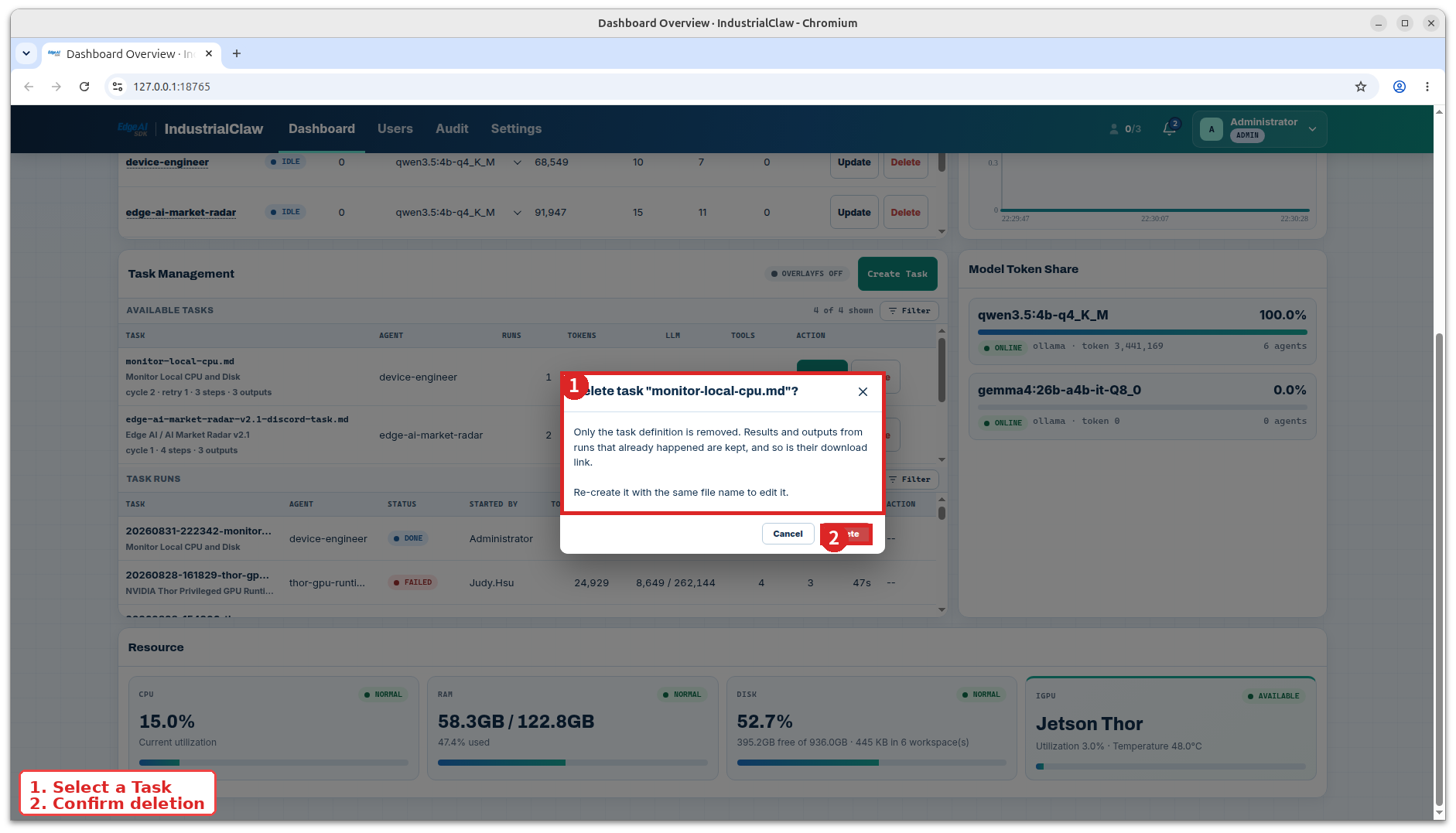
Only the definition goes. Existing Task Runs, Logs, Sessions, Outputs, and download links all stay.
A Task definition cannot be edited in place. To change one, delete it and create it again under the same filename—which shows up in Audit as a deletion followed by a creation.
Related documentation
- Quick Start — a complete Task, written and run
- Results and Audit — reading a run once it finishes
- Roles and Limits — every size and concurrency limit