Sign In, Accounts, and Assignment
Every account on a device is created by an Administrator. There is no self-registration, and a role cannot be changed after the account exists.
The admin first sign-in
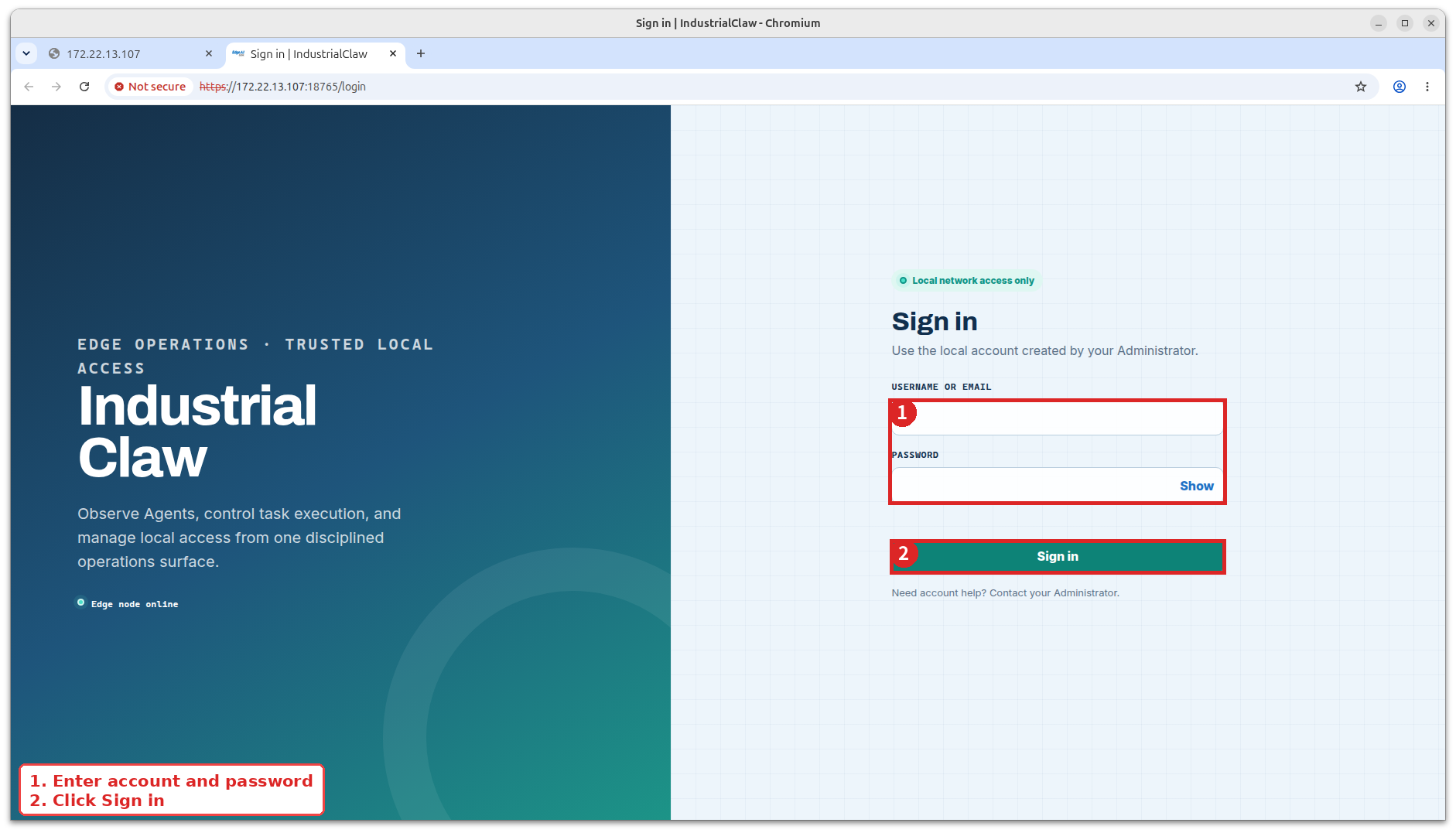
- Open
https://<device-ip>:18765/in a browser. - Sign in with the username
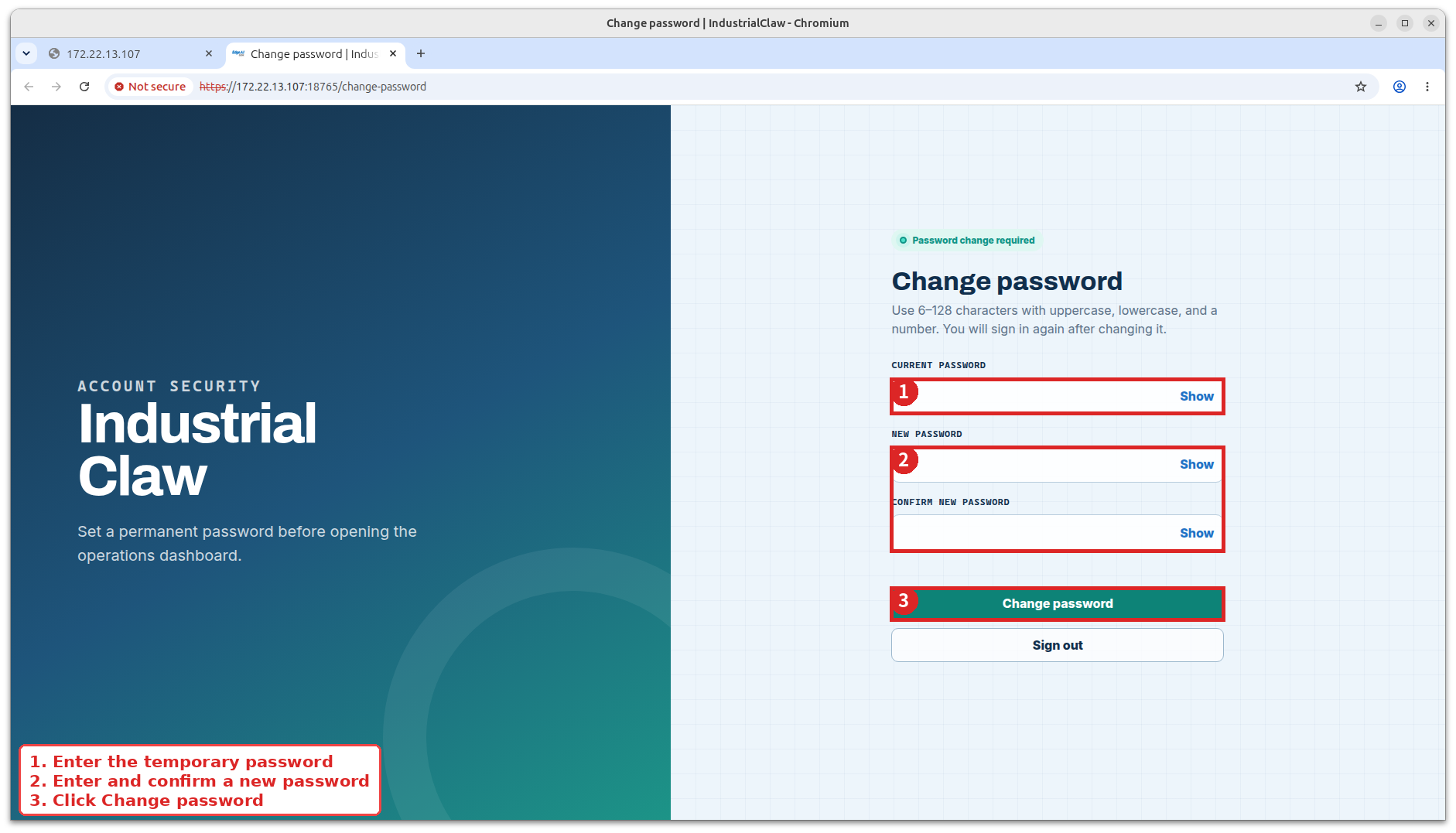
adminand the passwordadmin. - The device requires an immediate password change. The new password must be 6–128 characters and contain uppercase letters, lowercase letters, and numbers.
- Sign in again with the new password.
View: Sign in
View first password change
The account you just changed is the bootstrap admin—the one the device ships with. It can do a few things no other account can, listed at the bottom of this page.
If the admin password is lost, reset it on the device:
cd /opt/Advantech/Agentic/app/openclaw/.openclaw/workspace/skills/ai-agent-control-dashboard
python3 scripts/manage_auth.py reset-admin-password
Create an account
Open Users → User Management → Local Accounts → Create User and fill in:
| Field | Notes |
|---|---|
| Account | The sign-in name. It cannot be changed later. |
| Display name | The name shown in the Dashboard. |
| Required and unique. It can also be used to sign in. | |
| Role | Administrator or User. It cannot be changed later. |
| Agent assignment | Shown for the User role only. It decides which Agents that person can see and operate. |
Select Create User, then copy the temporary password immediately—it appears once and expires after 24 hours.
View: Temporary password
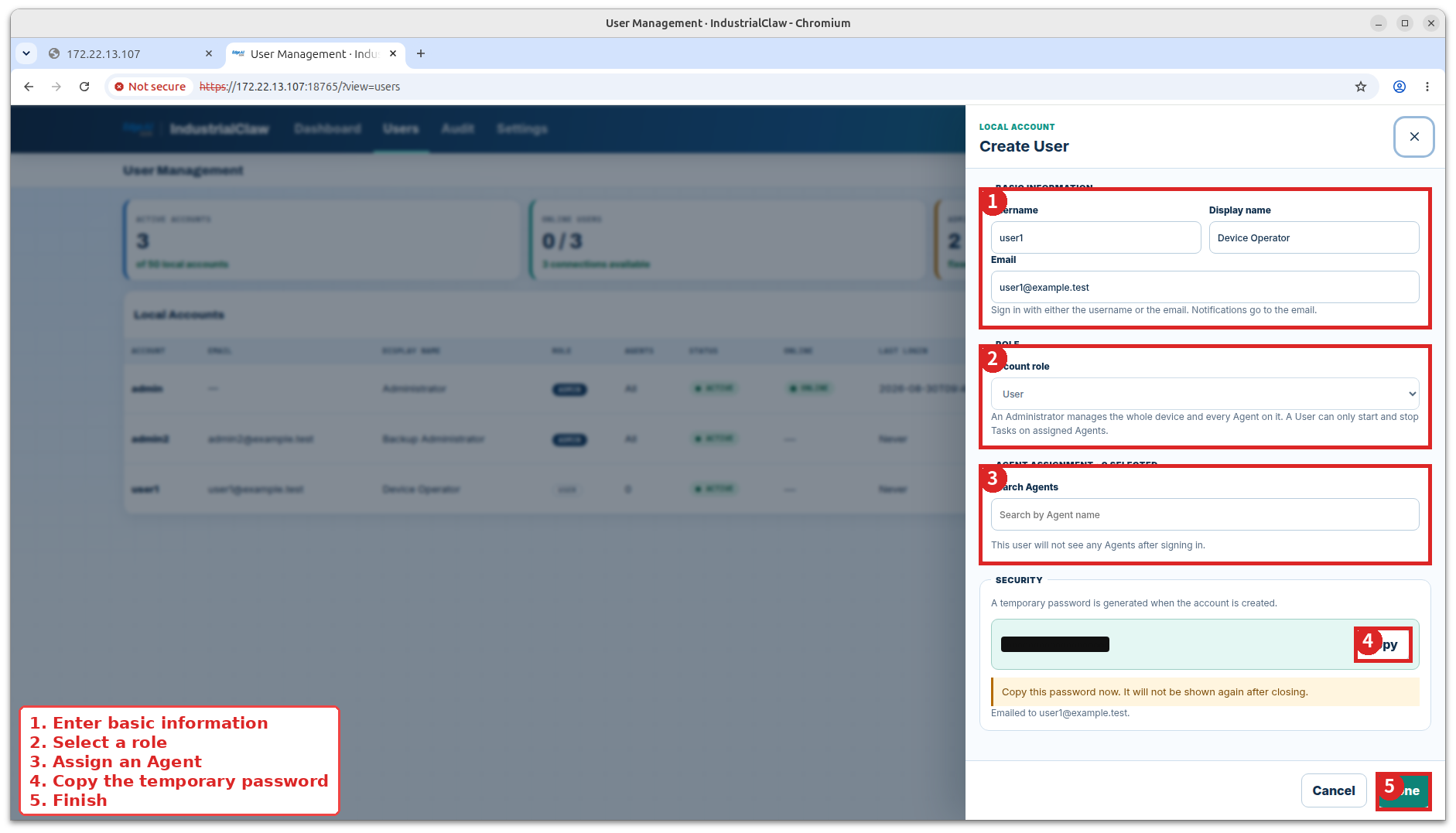
If the invitation email fails to send, the account still exists. Pass the temporary password on through a secure channel instead.
A User's first sign-in
The person signs in with their account name or email and the temporary password. The Dashboard sends them straight to Change password: the temporary password goes in Current Password, and the new one must meet the same rules as above. After changing it they sign in again.
View: What a User sees
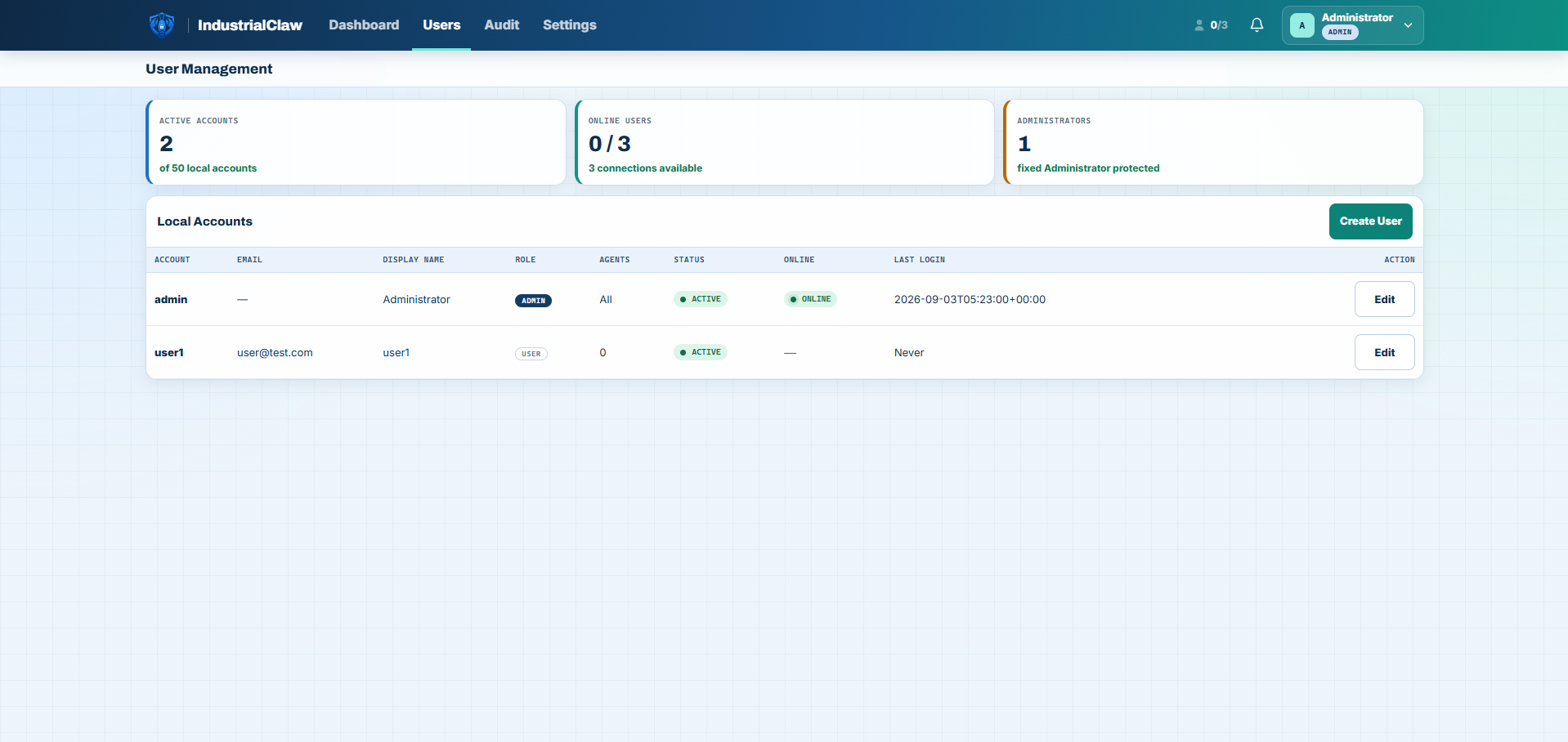
A User sees the Main Agent plus the Agents assigned to them, and can start and stop Tasks on those Agents. They cannot create Agents or Task definitions, and cannot open Audit. The full comparison is in Roles and Limits.
Change permissions
Open Users, select Edit on the account, tick or untick Agents under Agent assignment, and select Save Changes.
View: Agent assignment
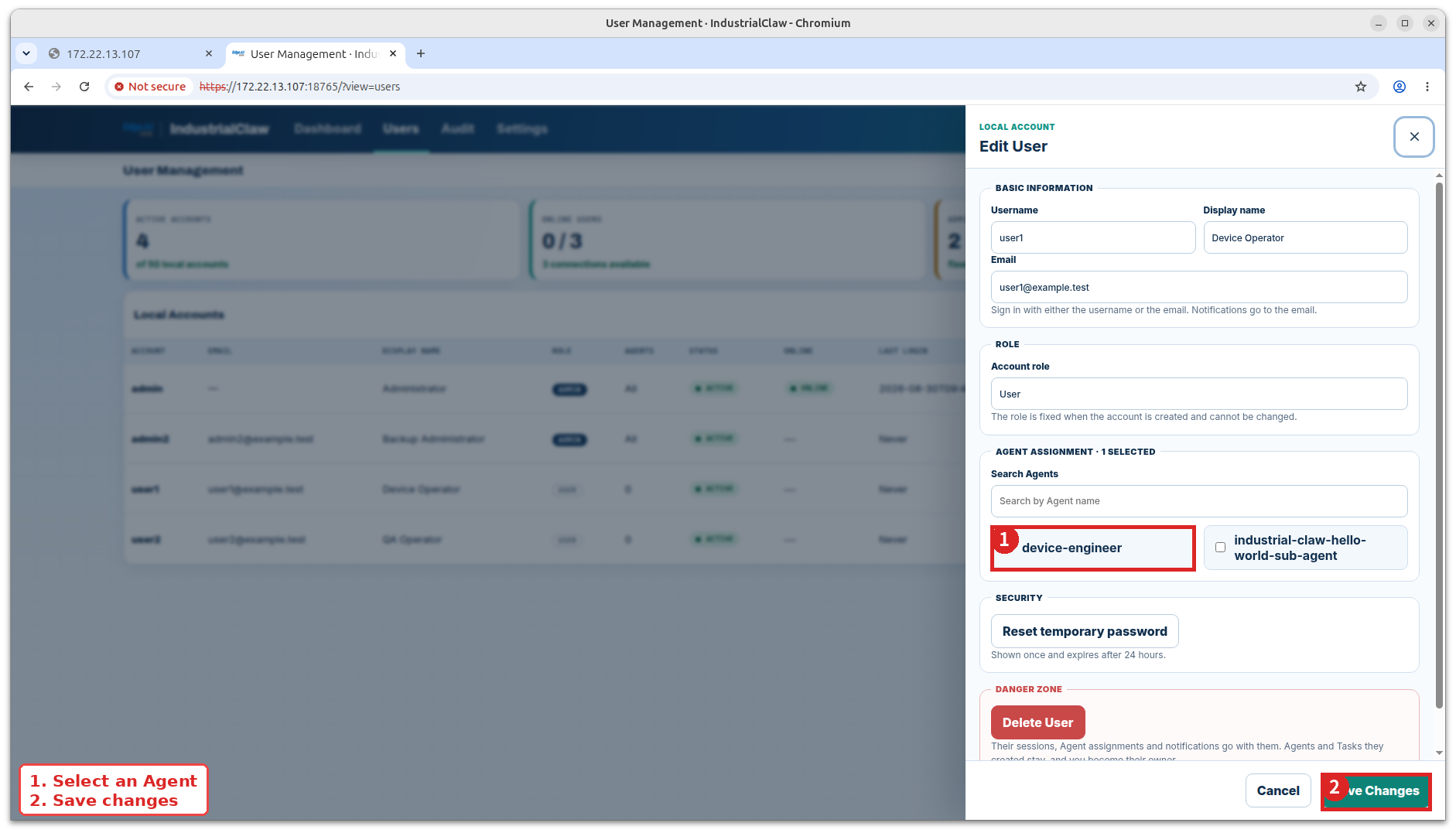
Changing an assignment ends that person's current session immediately. They sign in again and the new scope applies. Only an Administrator can change assignments.
The Users page
| Reading | Meaning |
|---|---|
| Active Accounts | How many accounts exist, against a limit of 50. |
| Online Users | How many are signed in right now, against a limit of 3. The bootstrap admin does not use one of those slots. |
| Administrators | How many Administrator accounts exist, against a limit of 10 besides the bootstrap admin. |
| Local Accounts | Account, email, display name, role, how many Agents are assigned, status, online state, and last sign-in. |
Bootstrap admin only
- Delete another account.
- Force another account to sign out.
- Keep full administrative access at all times.
Other Administrator accounts have everything else, but not these. The bootstrap admin itself cannot be deleted, disabled, or changed to another role, and nobody can delete their own account.
Deleting an account removes its sessions, assignments, notifications, and Chat sessions. Audit keeps the record of what it did, and the Agents and Task definitions it created stay on the device under the bootstrap admin.
Related documentation
- Dashboard Overview — what the signed-in person sees first
- Roles and Limits — the full permission matrix and every limit
- Audit Event Reference — what a sign-in, a password change, or an assignment records