Quick Start
Use device-monitor-agent to walk the whole loop once: install, sign in, import the Agent, create its Task, run it, and read the reports.
Before you begin
First make sure the environment is fully installed.
Download the two files of device-monitor-agent from the IndustrialClaw repository:
| File | What it is |
|---|---|
device-monitor-agent.zip | The Agent. Its device-monitor Skill takes read-only snapshots of CPU, temperature, and disk. |
monitor-local-cpu-task.md | The Task. It samples CPU usage, CPU temperature, and the root disk, and writes one report for each. |
1. Install and launch
Run the installer as described in Installation, then double-click the IndustrialClaw desktop shortcut.
The launcher checks the environment, starts the containers, waits up to 60 seconds for the Dashboard to answer, and opens the browser for you.
View: IndustrialClaw launcher starting the platform
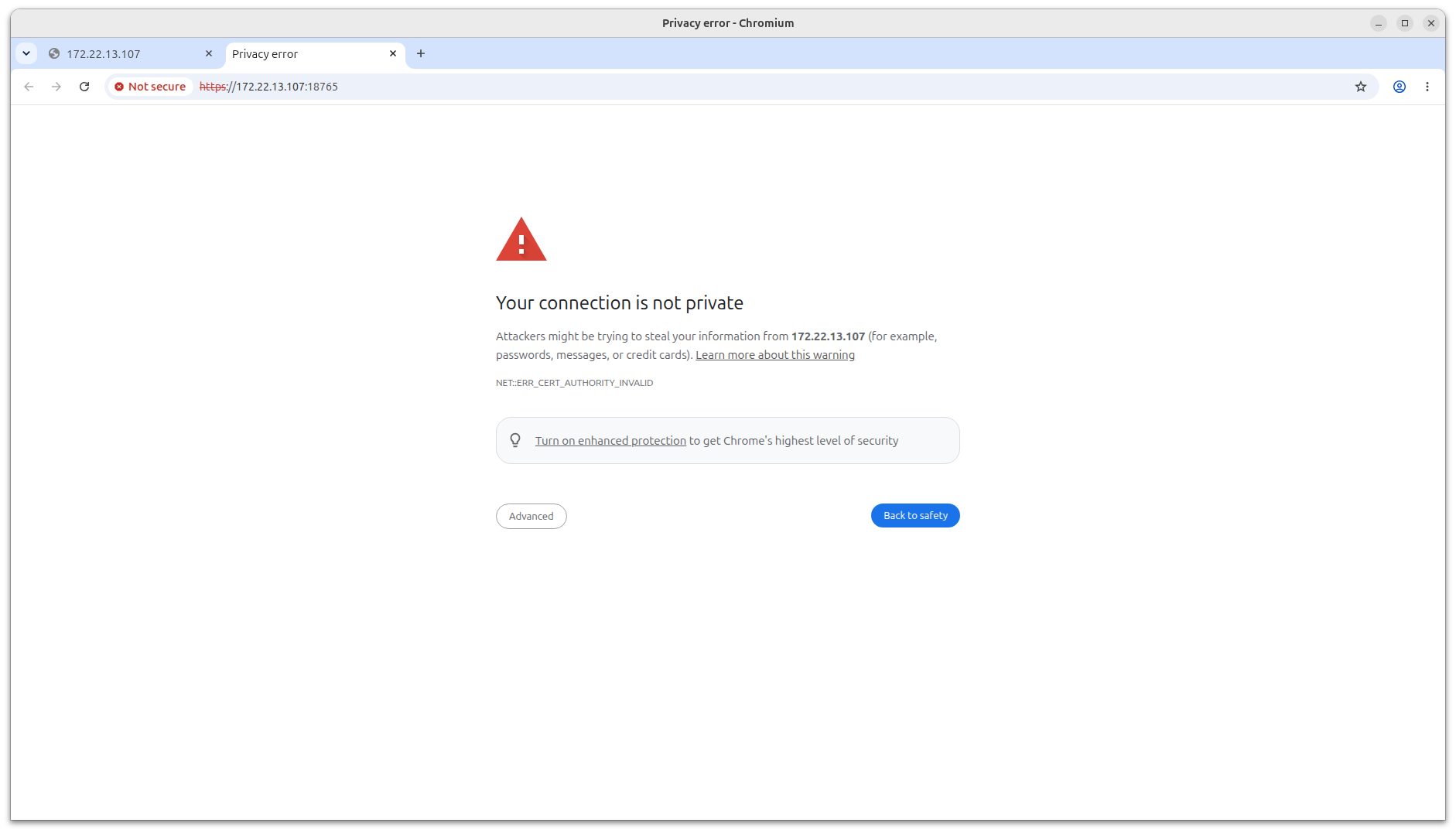
The browser shows a warning on the first connection. Open the advanced options and continue.
View the certificate warning
2. Sign in and set a password
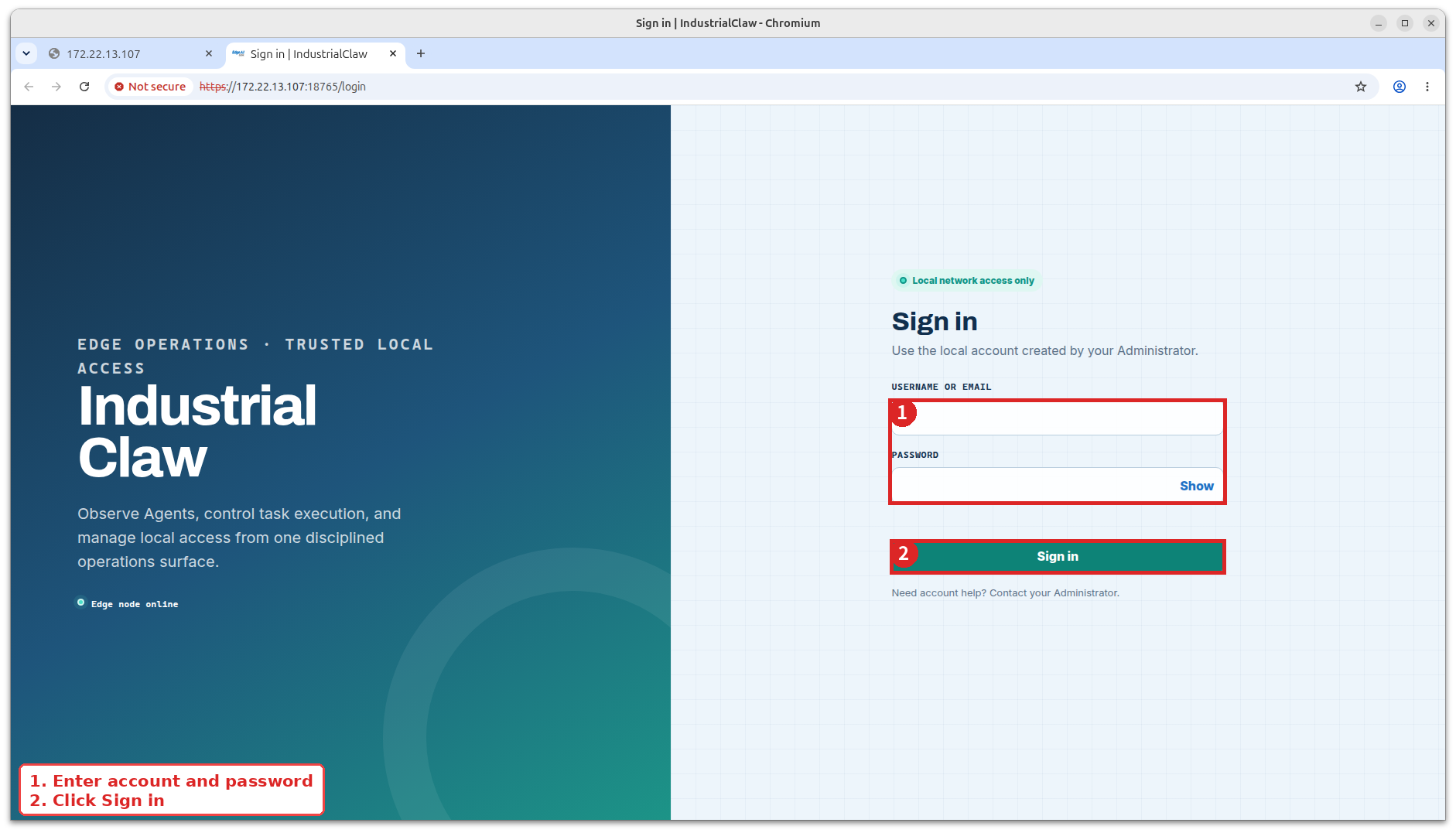
Open https://<device-ip>:18765/ and sign in with the default credentials admin / admin.
View the sign-in screen
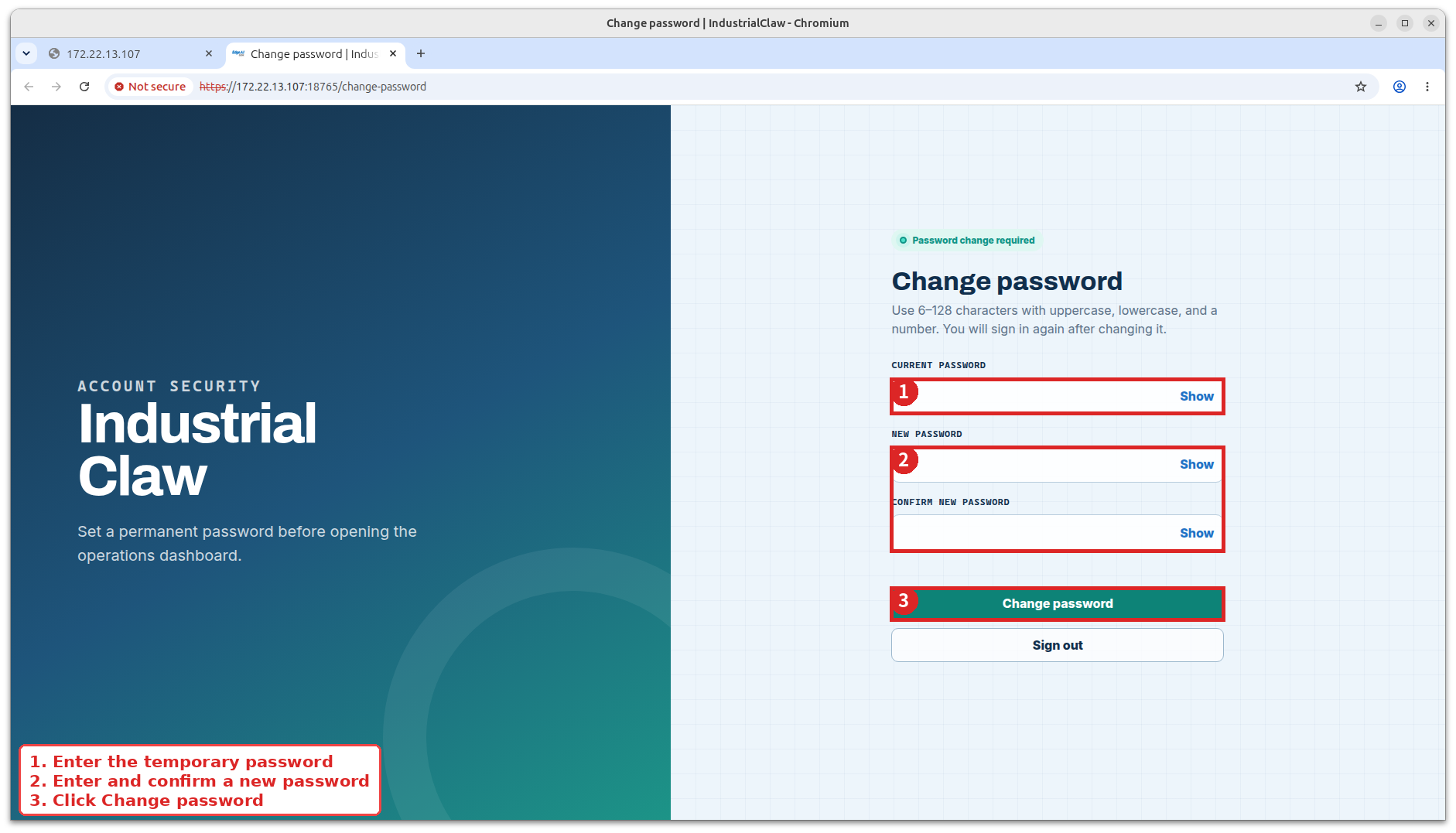
The Dashboard immediately requires a password change. The new password must be 6–128 characters and contain uppercase letters, lowercase letters, and numbers. Sign in again with the new password.
View: First sign-in password change
The admin account created at install time is the bootstrap admin. It is the only account that can delete other accounts or force another account to sign out. See Roles and limits.
3. Import the Agent
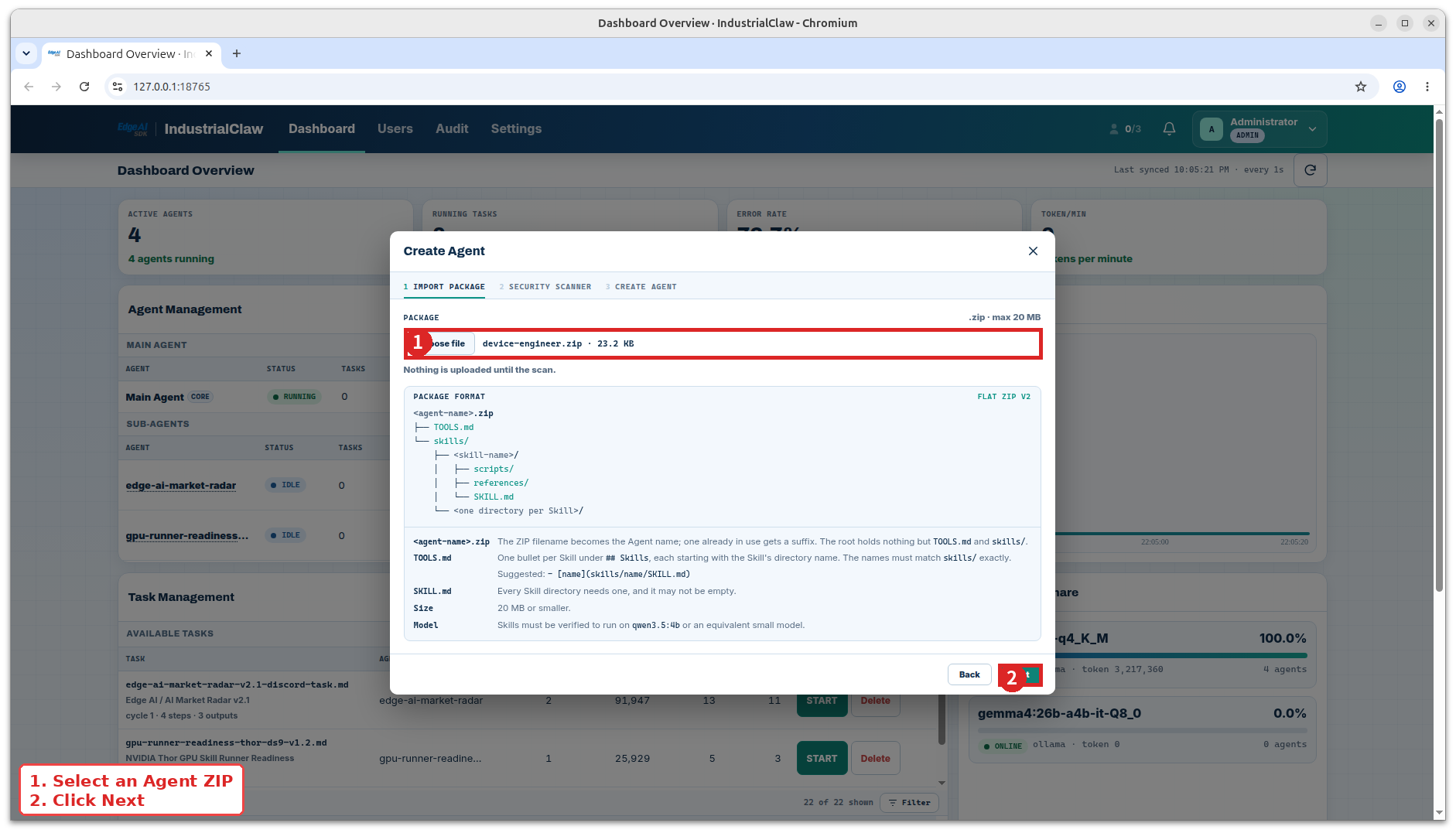
- Open Dashboard → Agent Management and select Create Agent.
- Under Import Package, choose
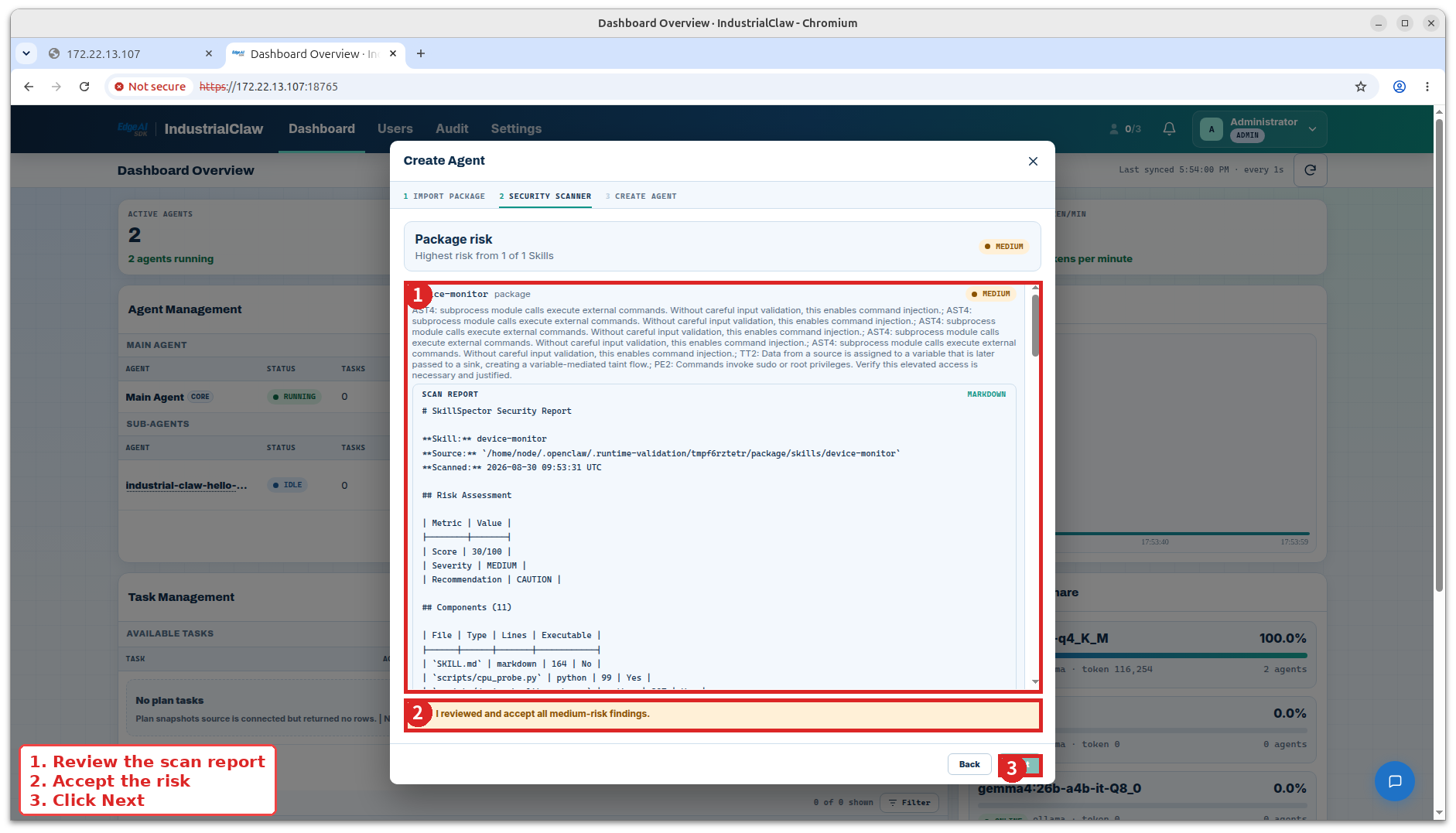
device-monitor-agent.zipand select Next. - Under Security Scanner, review the
device-monitorSkill's risk, file locations, permissions, mounts, and ports. - Acknowledge any finding that requires it, then complete Create Agent.
View: Import Package step
View the security scan
View the created Agent
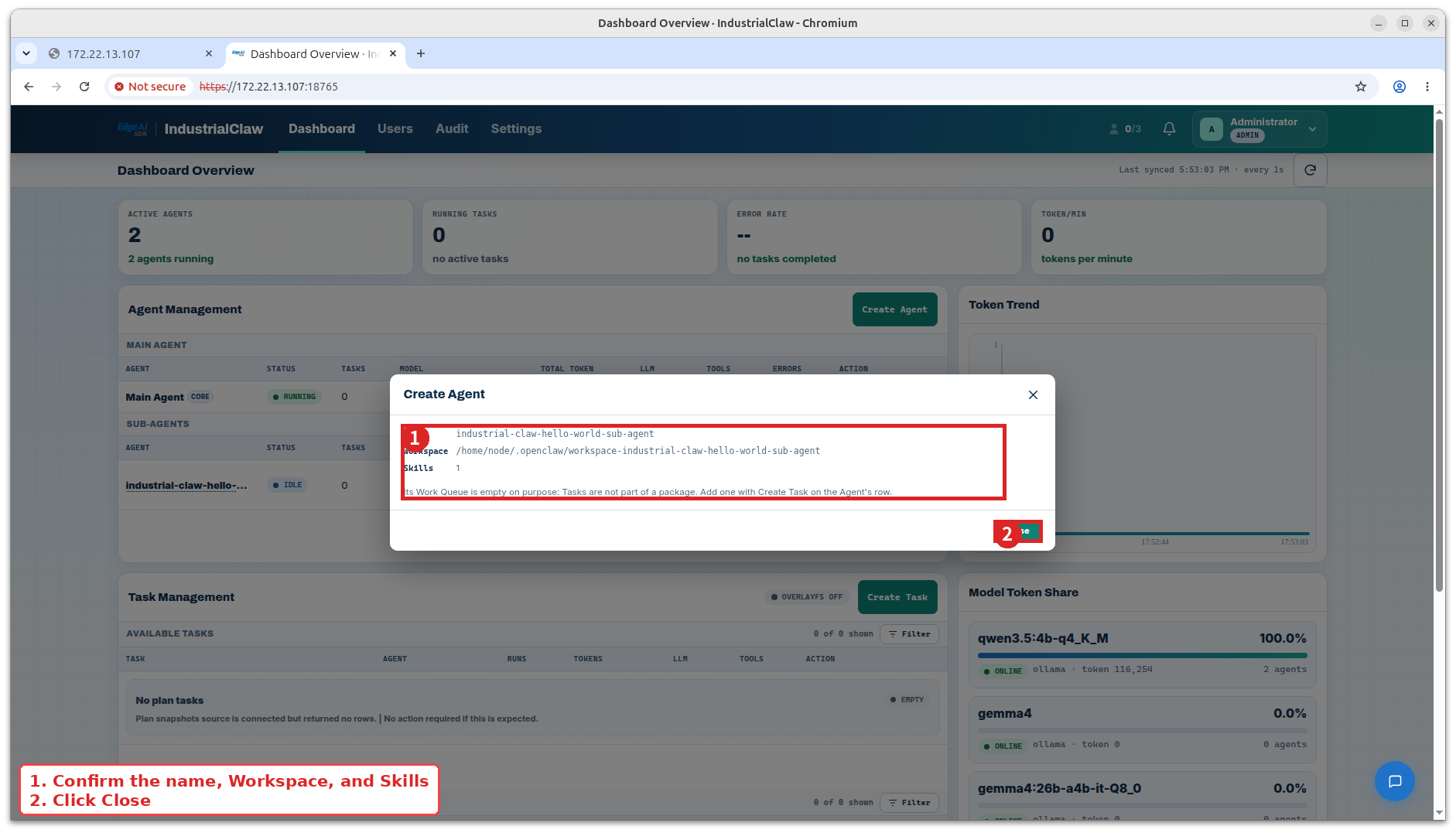
device-monitor-agent now appears in the list with no Tasks yet—that is expected. Tasks are created separately, in the next step.
4. Create the Task
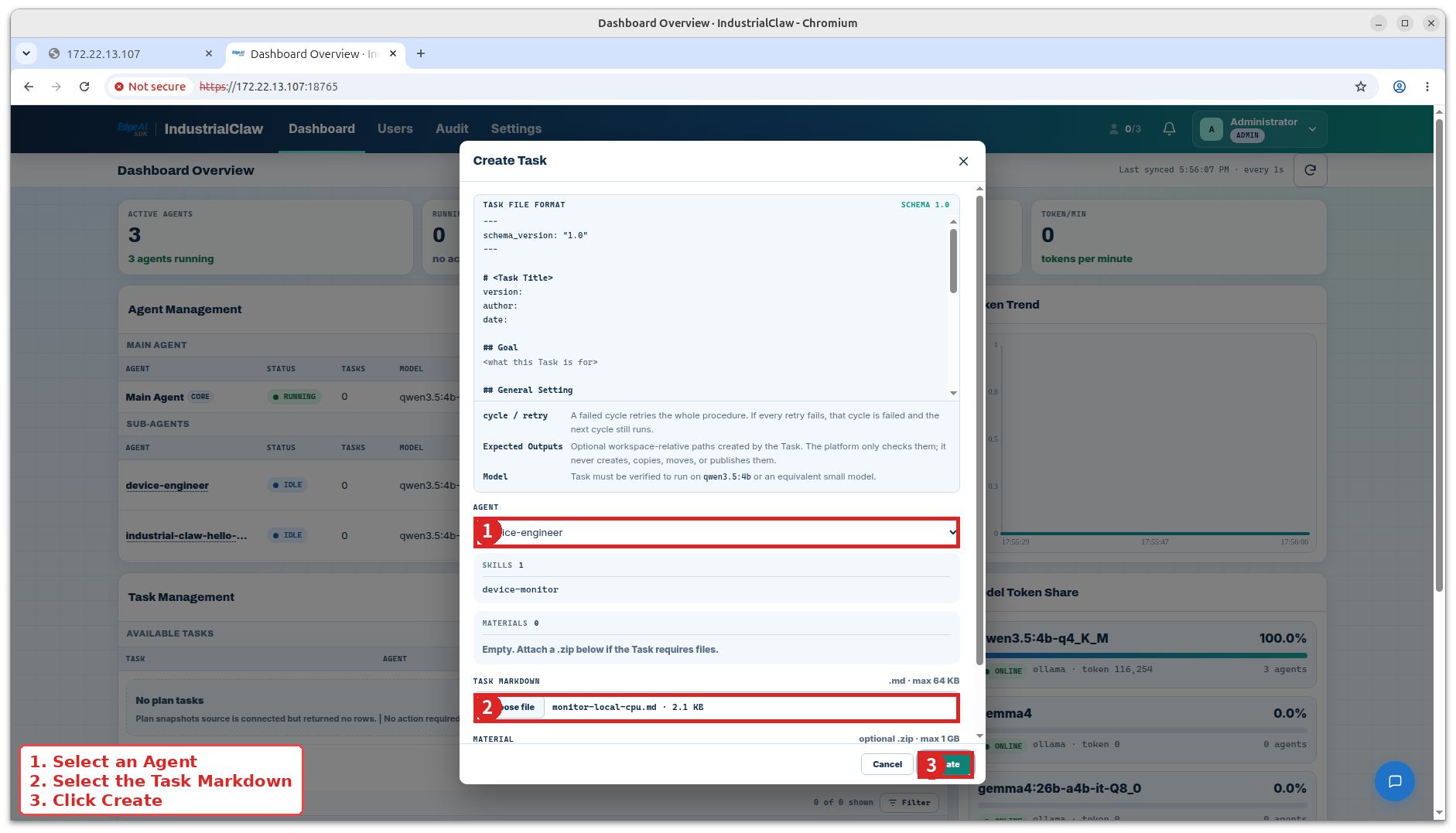
- Under Task Management, select Create Task.
- Choose
device-monitor-agentas the Agent, thenmonitor-local-cpu-task.mdas the Task Markdown. - Leave Material ZIP empty—this Task reads the device directly.
- Select Create, then open the new row under Available Tasks to confirm the definition stored on the device.
View: Create Task dialog
The Task runs two rounds (cycle: 2) and retries a failed round once (retry: 1). Each round runs three steps, each sampling five times:
| Step | What it samples | Report |
|---|---|---|
| 1 | CPU usage | cpu-usage-monitor-report.md |
| 2 | CPU temperature | cpu-temperature-report.md |
| 3 | Root disk usage and free space | disk-monitor-report.md |
The second round appends to the same reports. Final Verification then runs verify_report.py on all three reports.
5. Start the Task
Select START on the monitor-local-cpu-task row. The button briefly shows STARTING…, and a new record appears under Task Runs.
View: Starting a Task
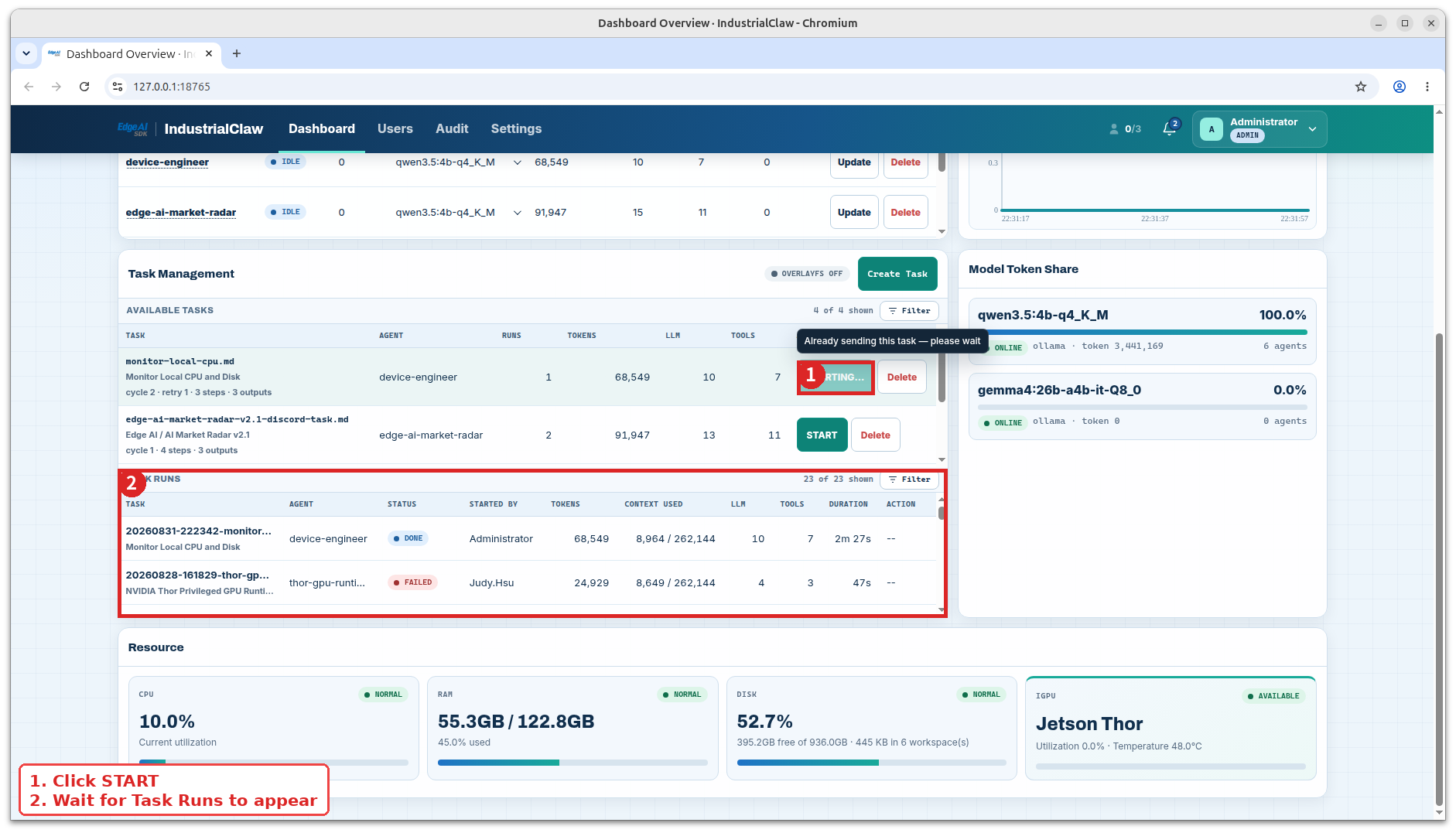
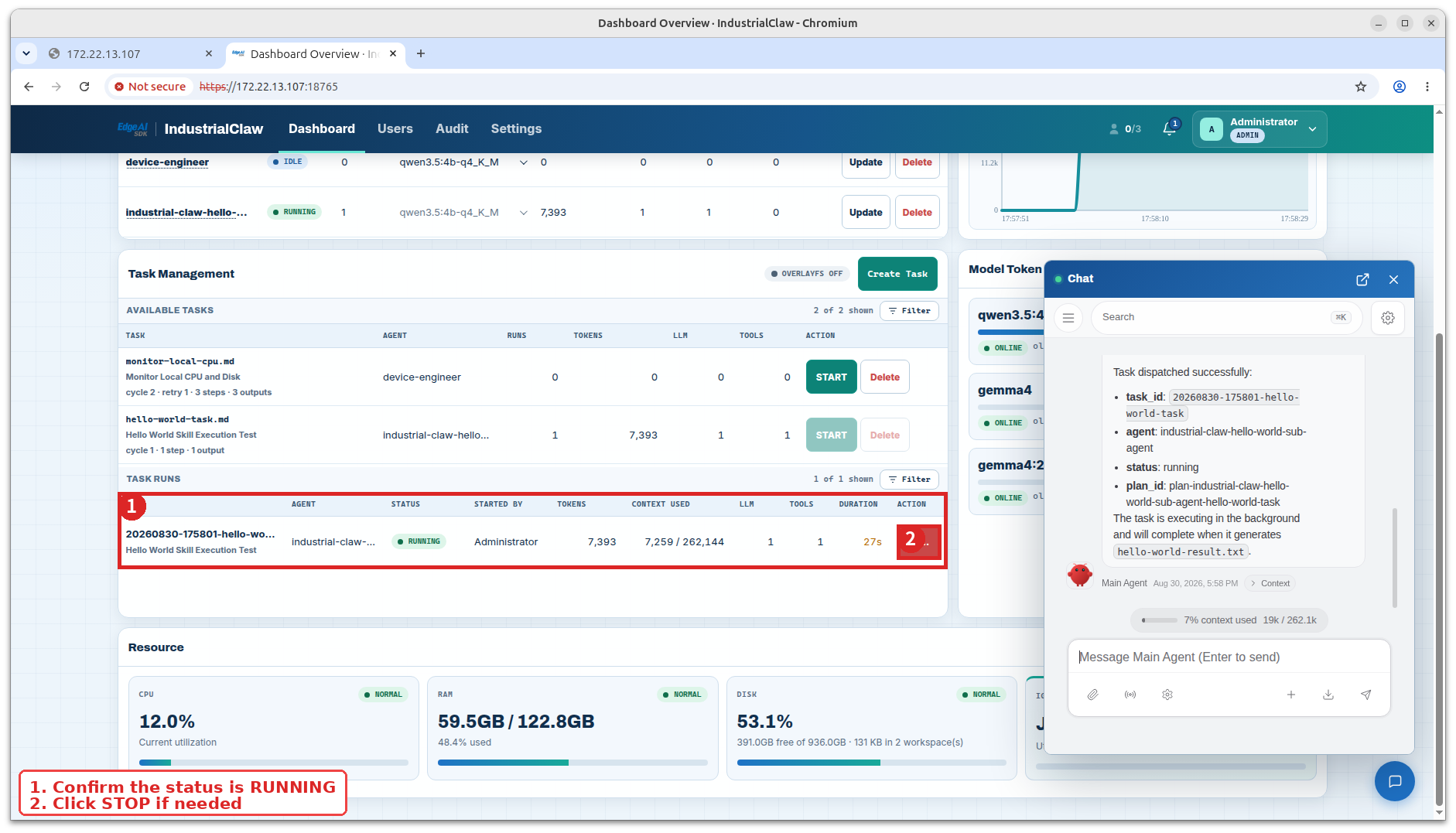
START creates, claims, and dispatches the run in one call, so it never waits in a queue: the record appears as running and ends as done or failed.
View a running Task
View a completed Task
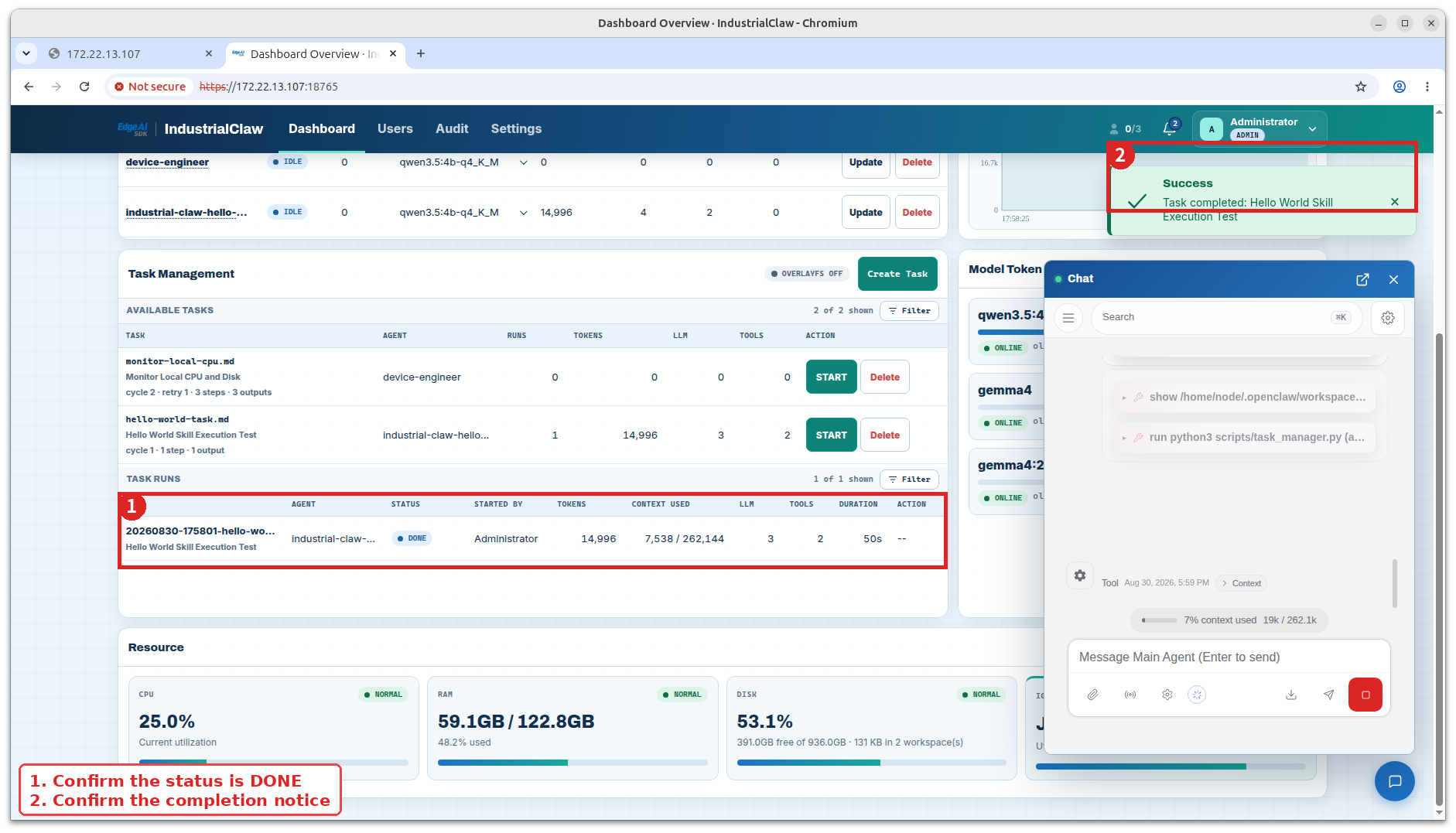
You do not start an Agent container by hand. START creates, claims, and dispatches the run, and writes an Audit record naming who started it.
6. Read the result
Select the empty area of the Task Run row—not the STOP button—to open the detail dialog. It has three tabs:
| Tab | What it holds |
|---|---|
| Log | The latest 400 lifecycle, round, step, and error records |
| Session | The USER, ASSIST, TOOL, and RESULT messages exchanged with the model |
| Outputs | The three reports, available for download |
View: Task Run outputs
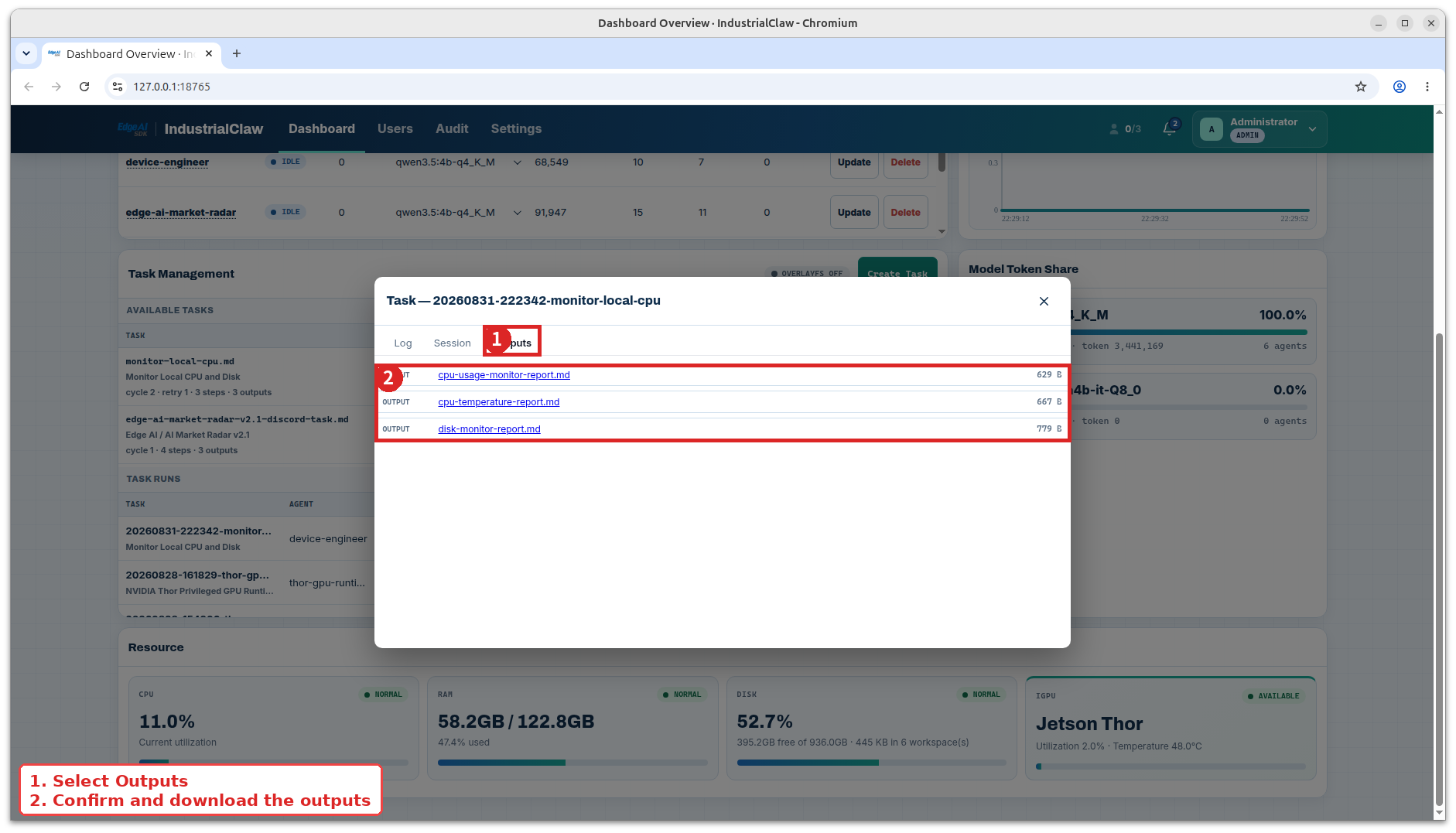
A value the device cannot read, such as a CPU temperature with no sensor, is written as Unknown rather than estimated.
The run reaches done only when Final Verification passes and all three reports exist as regular files. The platform verifies those files; it never creates, copies, or moves them.
Next steps
- Operate the device day to day: Dashboard Overview.