Agents: Import, Update, Delete
Agent lifecycle
| Stage | What IndustrialClaw provides |
|---|---|
| Build | Package an Agent as one ZIP of TOOLS.md and skills/, scanned on import |
| Deploy | Import the package onto an approved device and assign it to the accounts that may use it |
| Manage | Versions, access, runtime status, Logs, Sessions, Outputs, and Audit |
| Scale | Reuse a validated package across devices, lines, and sites |
Once an Agent is deployed, day-to-day work on the device runs as a loop around the platform: orchestrate, dispatch and execute, monitor, govern, and improve. The Agent types in the figure are examples, not names the platform defines.
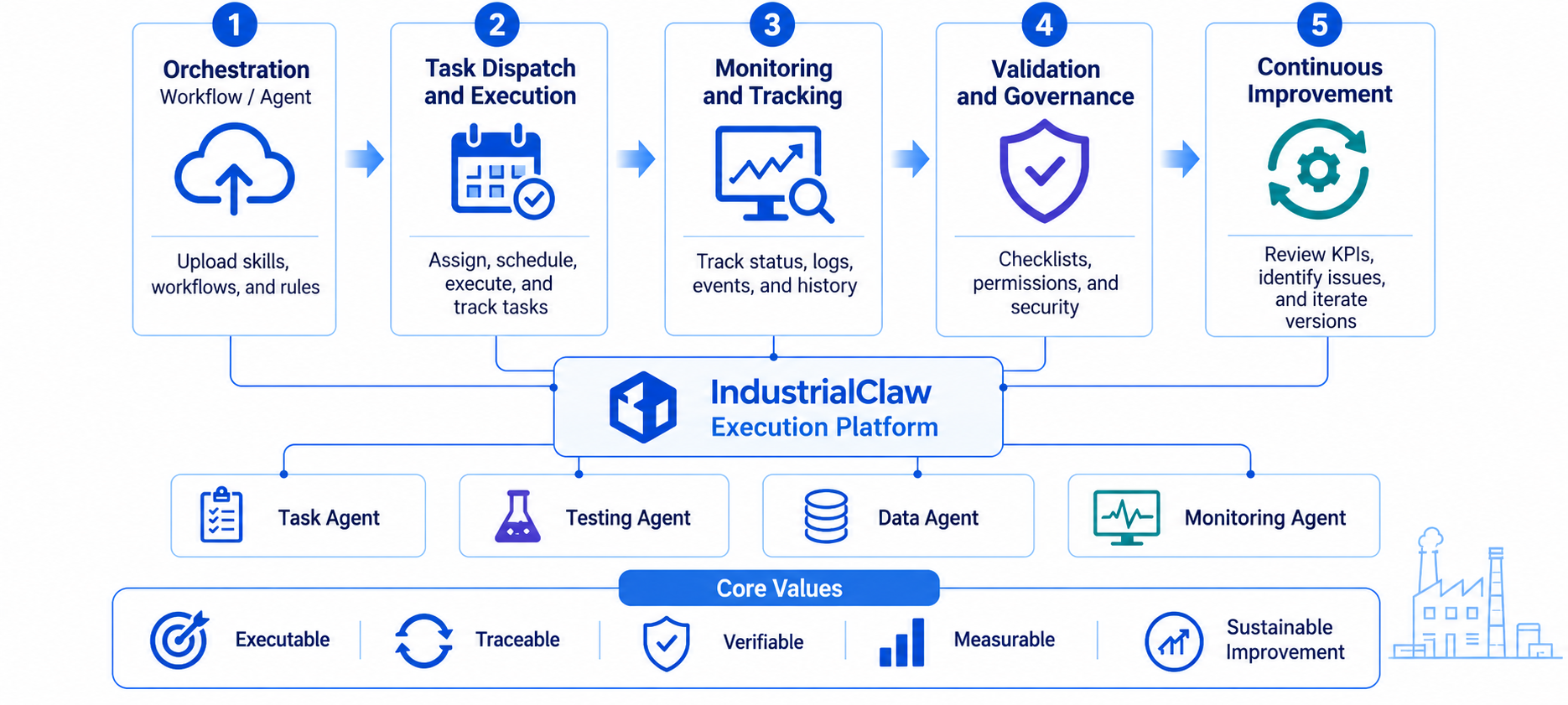
Who does each stage is a question of how a site is organised, not of the platform. The roles IndustrialClaw itself defines—Administrator, User, and the bootstrap admin—are in Roles and limits.
Build an Agent package
An Agent is one ZIP with this layout:
<agent-name>.zip
├── TOOLS.md
└── skills/
    ├── <skill-name>/
    │   ├── scripts/        (optional)
    │   ├── references/     (optional)
    │   └── SKILL.md
    └── <one directory per Skill>/
Steps
-
Create a folder and write a SKILL.md under
skills/<skill-name>/. If the Skill runs scripts, put them in that Skill'sscripts/. -
At the folder root, write a TOOLS.md that lists every Skill under
## Skills. -
Run the commands in SKILL.md directly on the device first, and confirm the scripts finish and produce the expected result.
-
Enter the folder and package
TOOLS.mdandskills/as a ZIP. The filename becomes the Agent name: lowercase letters, digits, and-only, and notmainormain-agent:zip -r ../<agent-name>.zip TOOLS.md skillsYou can also select
TOOLS.mdandskills/in an archive tool, but both must be at the ZIP root, without an enclosing folder. Leave the Task file out of the ZIP. -
Follow Import an Agent, then Create a Task to verify it.
TOOLS.md
The importer reads the list under ## Skills. When adding or renaming a Skill, check that:
- Each Skill has one entry in the format
- [name](skills/name/SKILL.md). - The name exactly matches its directory under
skills/. - Every directory is listed once, with no missing, extra, or duplicate entries.
Other sections, such as ## Purpose, are notes for people.
Copy a blank TOOLS.md
# <Agent title>

## Skills

- [<skill-name>](skills/<skill-name>/SKILL.md)

## Purpose

<what this Agent is for>
SKILL.md
A SKILL.md has four sections:
| Section | What it tells the model |
|---|---|
| Description | What the Skill does and when to use it |
| Behavior | The exact command to run, and what it does and does not do |
| Expected Result | What the output looks like on success |
| Completion Criteria | What counts as success |
Copy a blank SKILL.md
# <Skill title>

## Description

<what the Skill does and when to use it>

## Behavior

Run the bundled script:

```bash
<full command>
```

<what it does and does not do>

## Expected Result

<what the output looks like on success>

## Completion Criteria

<what counts as success>
Write for a small model
Verify the Skill on a 4B-class model. Small models miss implied steps, so be explicit:
- One action per step, with the command written out in full.
- Write known parameters explicitly; leave calculations and complex conditions to scripts.
- State which file is read, which path is written, and what the output contains.
- Run it on
qwen3.5:4bor an equivalent model: passing import and scanning does not mean the result is correct.
When you need an additional runtime
Read this only when the work needs extra packages, a GPU, or services.
A Skill with no runtime declaration runs in the shared skill-runner-<agent> container (Python 3.12 and Node 24). The container is discarded after each run, so put install steps in SKILL.md to run every time:
## Environment

    pip install "requests>=2.31"
For a dedicated container, declare it in YAML frontmatter at the top of SKILL.md (the body does not count):
---
runtime:
  type: compose
  file: docker-compose.yml
  service: worker
---
type | Required fields | Meaning |
|---|---|---|
compose | file, service | Compose file and the service to run |
dockerfile | file (optional context) | Built from a Dockerfile |
image | image | An existing image |
Paths are relative to the Skill directory and may not be absolute or contain ... For permission approval, see Import an Agent.
Beyond a few pip install lines (system packages, GPU libraries, a database, slow installs), use Compose: the shared container reinstalls every time; a dedicated one is built once.
Package rules
| Item | Rule |
|---|---|
<agent-name>.zip | The ZIP filename becomes the Agent name; one already in use gets a suffix. The root holds nothing but TOOLS.md and skills/. |
TOOLS.md | One bullet per Skill under ## Skills, each starting with the Skill's directory name, which must match skills/ exactly. |
SKILL.md | Every Skill directory needs one, and it may not be empty. |
| Size | 20 MB or smaller. |
| Model | Skills must be verified to run correctly on a small model. |
For a complete example, see Build Your First Agent.
Import an Agent
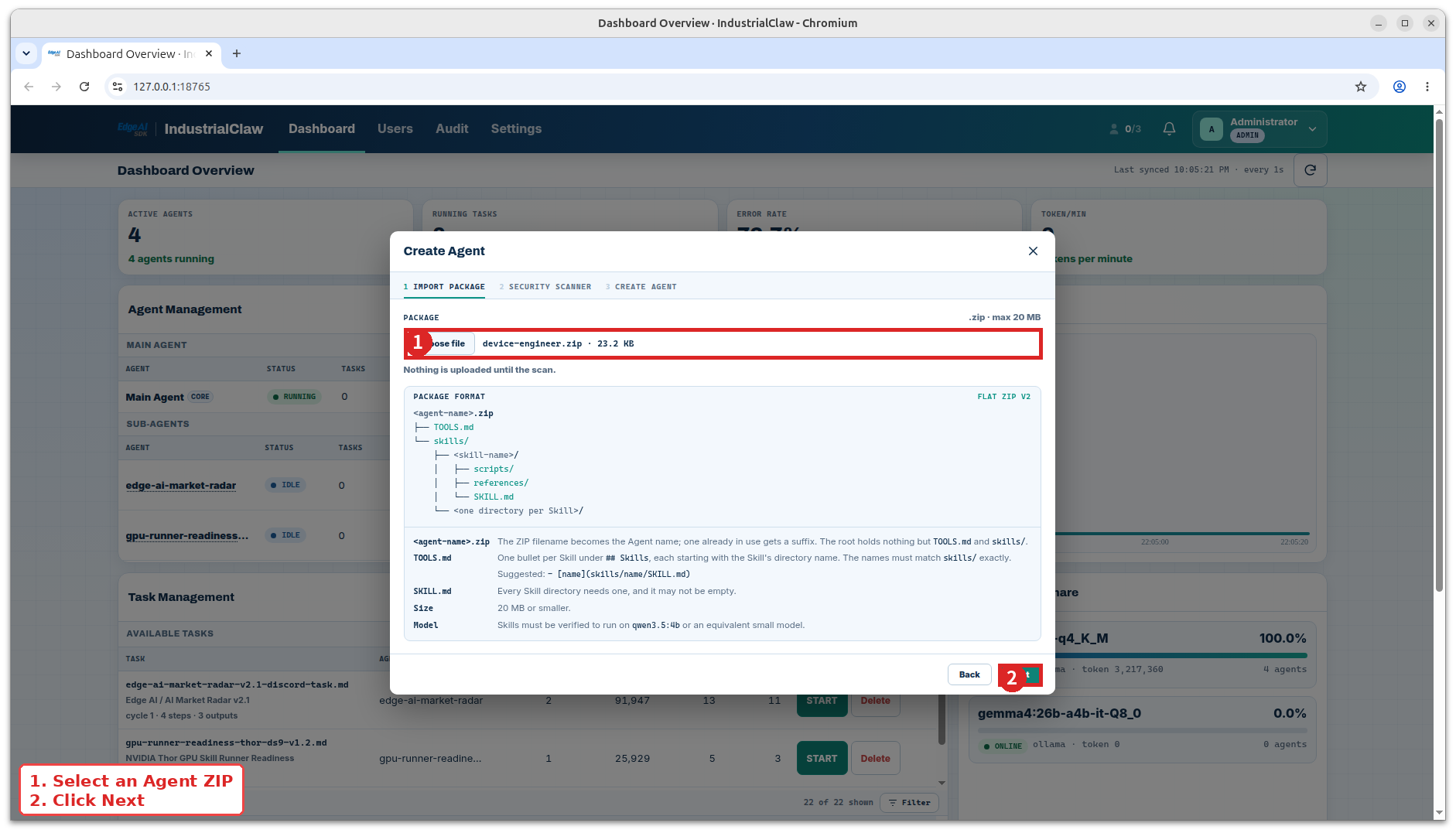
Open Dashboard → Agent Management as an Administrator and select Create Agent.
| Step | What happens |
|---|---|
| Import Package | Choose the Agent ZIP and continue. Nothing has been created yet. |
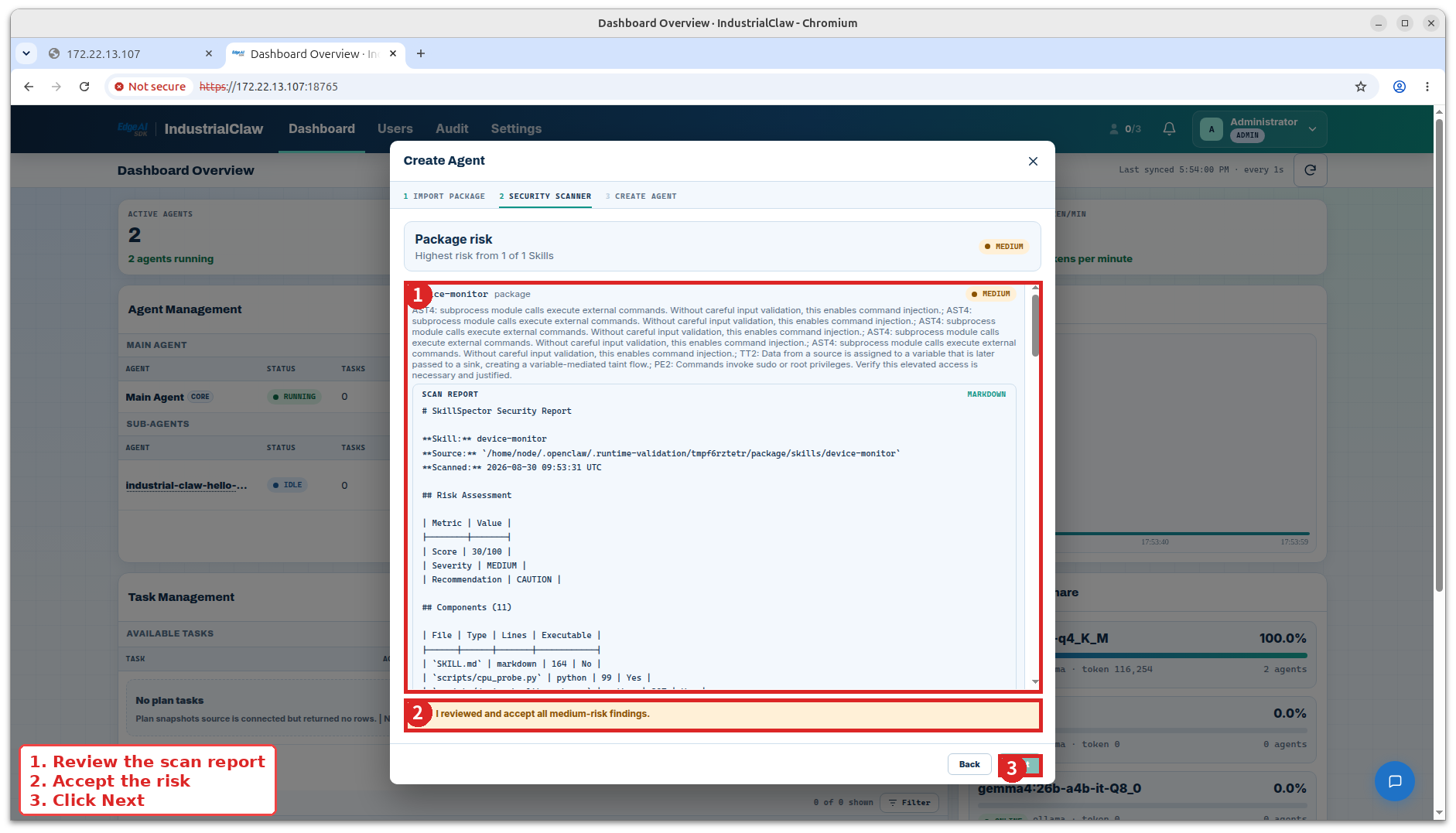
| Security Scanner | The package is scanned. Review each Skill's risk, file locations, permissions, mounts, and ports. |
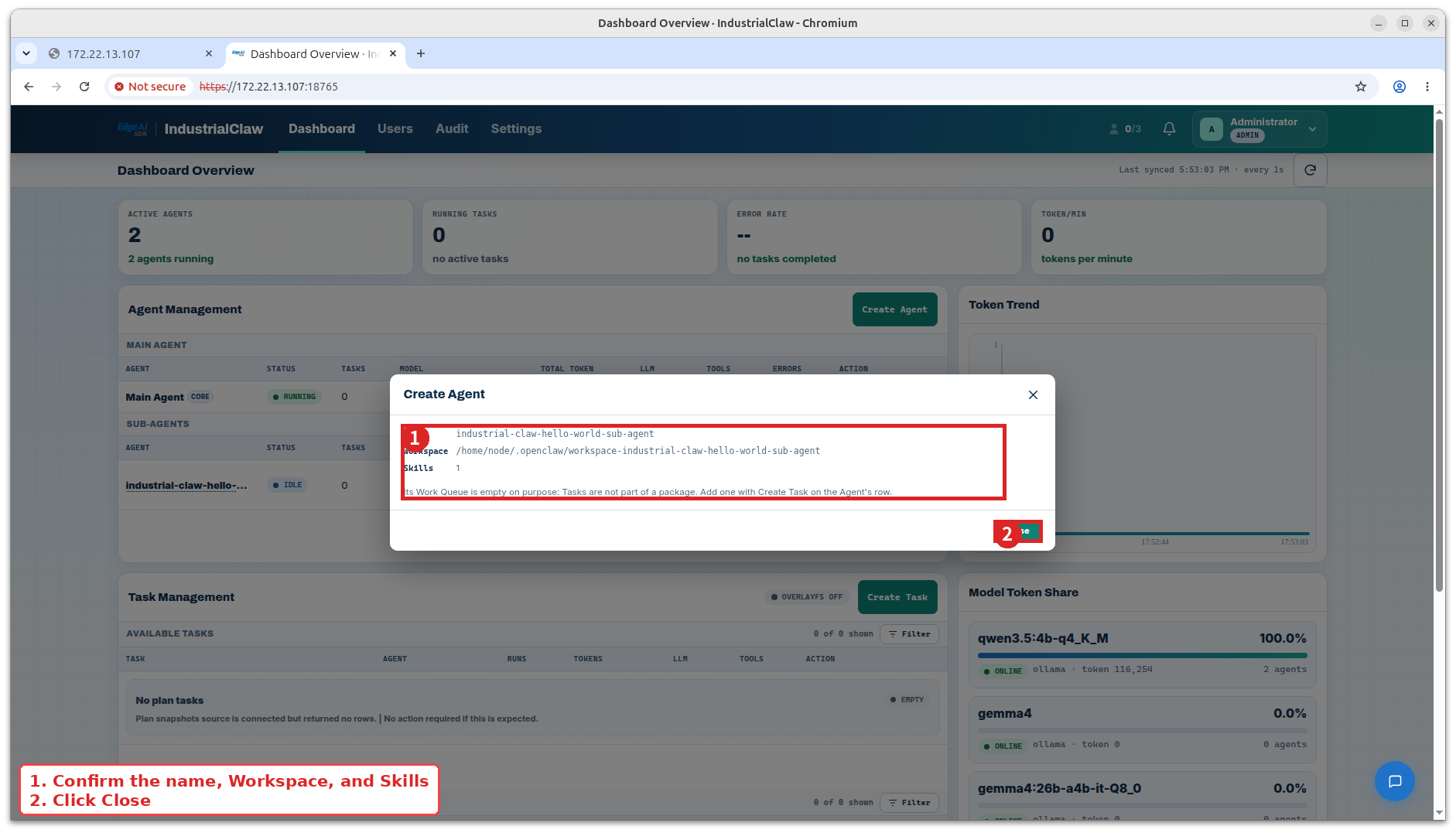
| Create Agent | Review the summary and confirm. A Skill that brings its own container lists the directories, ports, and permissions it wants before you approve it. |
View: Import Package
View: Security Scanner
View agent created
Backing out of either of the first two steps leaves nothing behind, and a failed import rolls back completely—there is no half-installed Agent.
Scan results
| Result | What the platform does | What you do |
|---|---|---|
LOW | Continues | Check the basic permissions and dependencies. |
MEDIUM | Warns, and asks an Administrator to acknowledge this specific scan result | Read the finding and the file it points at, and confirm the behaviour is necessary. |
HIGH | Blocks the import | Send it back to be fixed and scanned again. |
CRITICAL | Blocks the import | Stop, and have the code reviewed by hand. |
Every rule and threshold is in the Security Scanning Reference.
Common import problems
| Message | Cause |
|---|---|
TOOLS.md does not match the Skills | A name differs from its directory, or an entry is missing or extra. |
| Missing permission | The device is not paired yet. Run setup_pairing.sh once. |
| Invalid filename | The ZIP name contains uppercase letters, spaces, or underscores, or uses the reserved name main or main-agent. |
The Agent workspace
Creating an Agent gives it a workspace of its own:
| Folder | What lives there |
|---|---|
skills/ | The Skills that came in the package |
tasks/ | Task definitions, added afterwards |
materials/ | Input files a Task needs |
outputs/ | Where a Task's declared results go by default |
A new Agent has no Tasks yet; that is normal.
What the container gives you
execute, check, and Final Verification can use these environment variables:
| Variable | Contents |
|---|---|
TASK_ID | The id of this Task |
TASK_ARTIFACT_DIR | A writable directory for intermediate and working files |
TASK_MANAGER | Path to the platform CLI, for writing the Task's own records |
There is no variable for the round, step, or retry count; use TASK_ID to correlate across rounds.
Only two paths are writable: the Agent workspace (outputs) and $TASK_ARTIFACT_DIR (scratch files). Do not write an Expected Output into $TASK_ARTIFACT_DIR; the platform does not check there.
stdout goes into the Task Log; for a separate downloadable log file, use the platform CLI:
python3 "$TASK_MANAGER" output-log "$TASK_ID" --append "cpu=12.4"
python3 "$TASK_MANAGER" output-log "$TASK_ID" --append "12:00,4.9" --file rows.csv
Update an Agent
- Stop any Task currently running on that Agent.
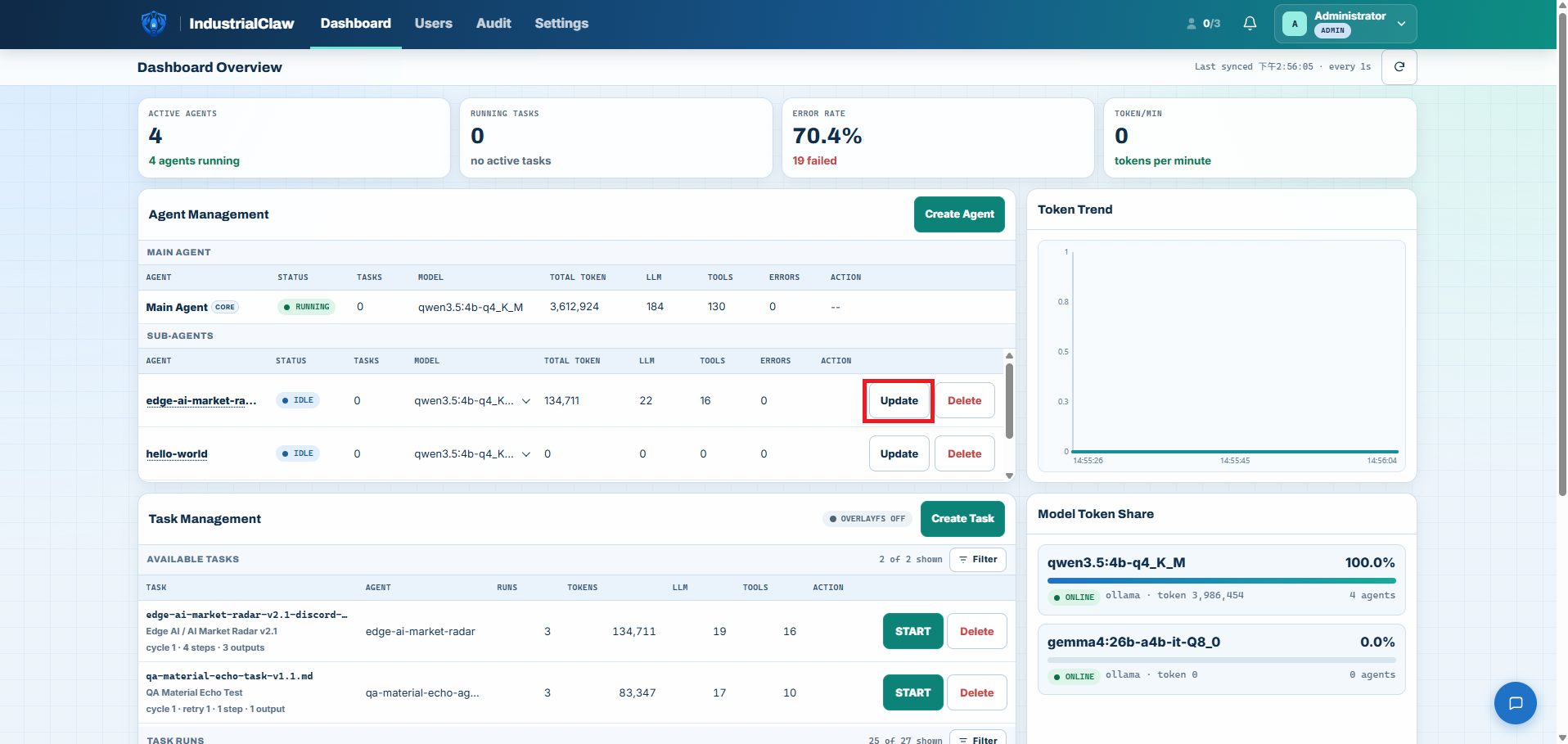
- Select Update on the Agent's row under Agent Management.
- Complete Import Package → Security Scanner → Update Agent.
- Check the updated Skills and model.
View: Update an Agent
View update review
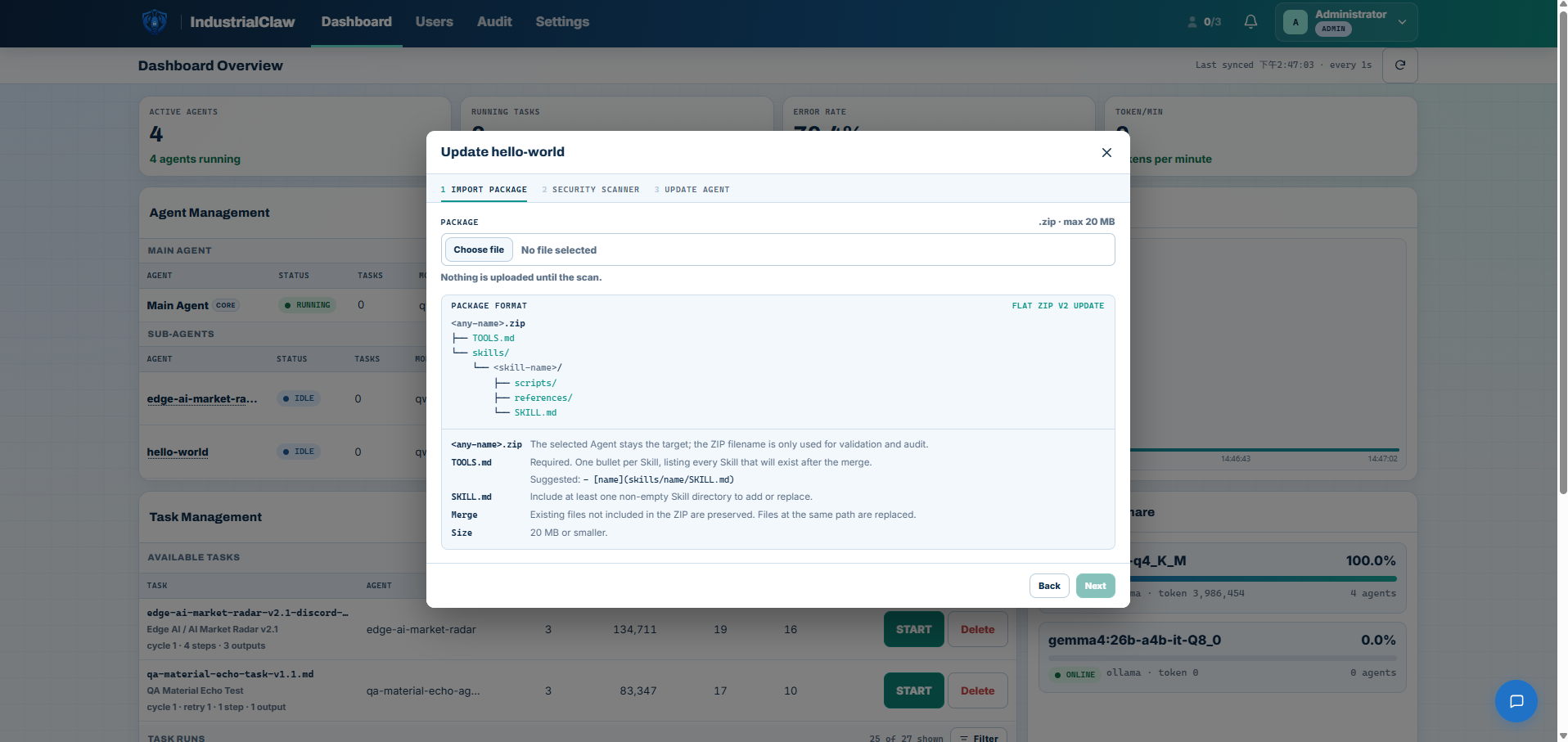
An update package carries only the Skills that changed, but the scanner evaluates the merged result, not the delta. A successful update keeps the Agent's existing Tasks, Materials, Outputs, and other workspace files. If any step fails, the installed version is untouched—a failed update is not downtime.
Updating an existing Agent does not count against the limit of ten Sub-agents.
Delete an Agent
- Stop every Task running on it.
- Download any Outputs worth keeping.
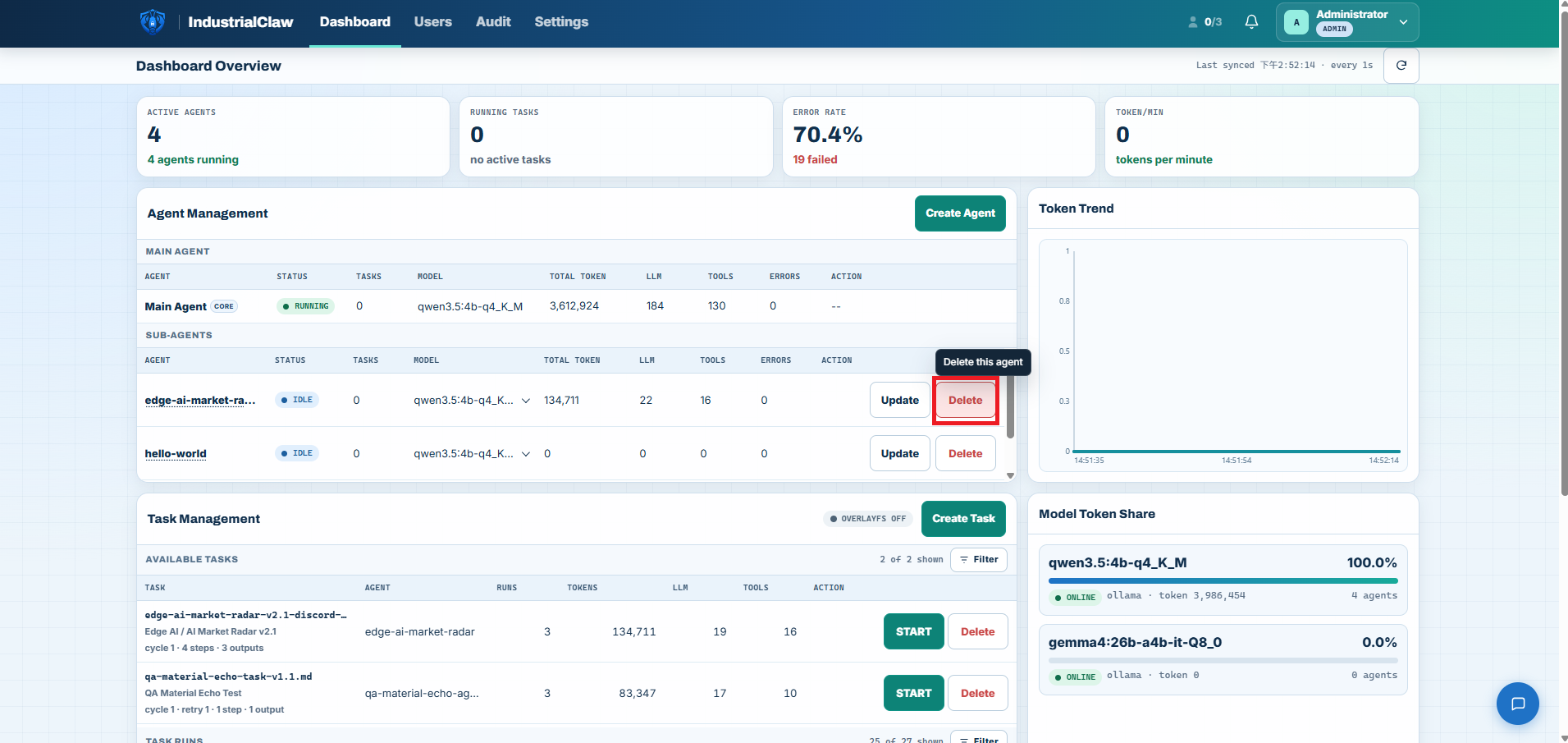
- Select Delete under Agent Management → Sub-Agents, then confirm.
View: Delete an Agent
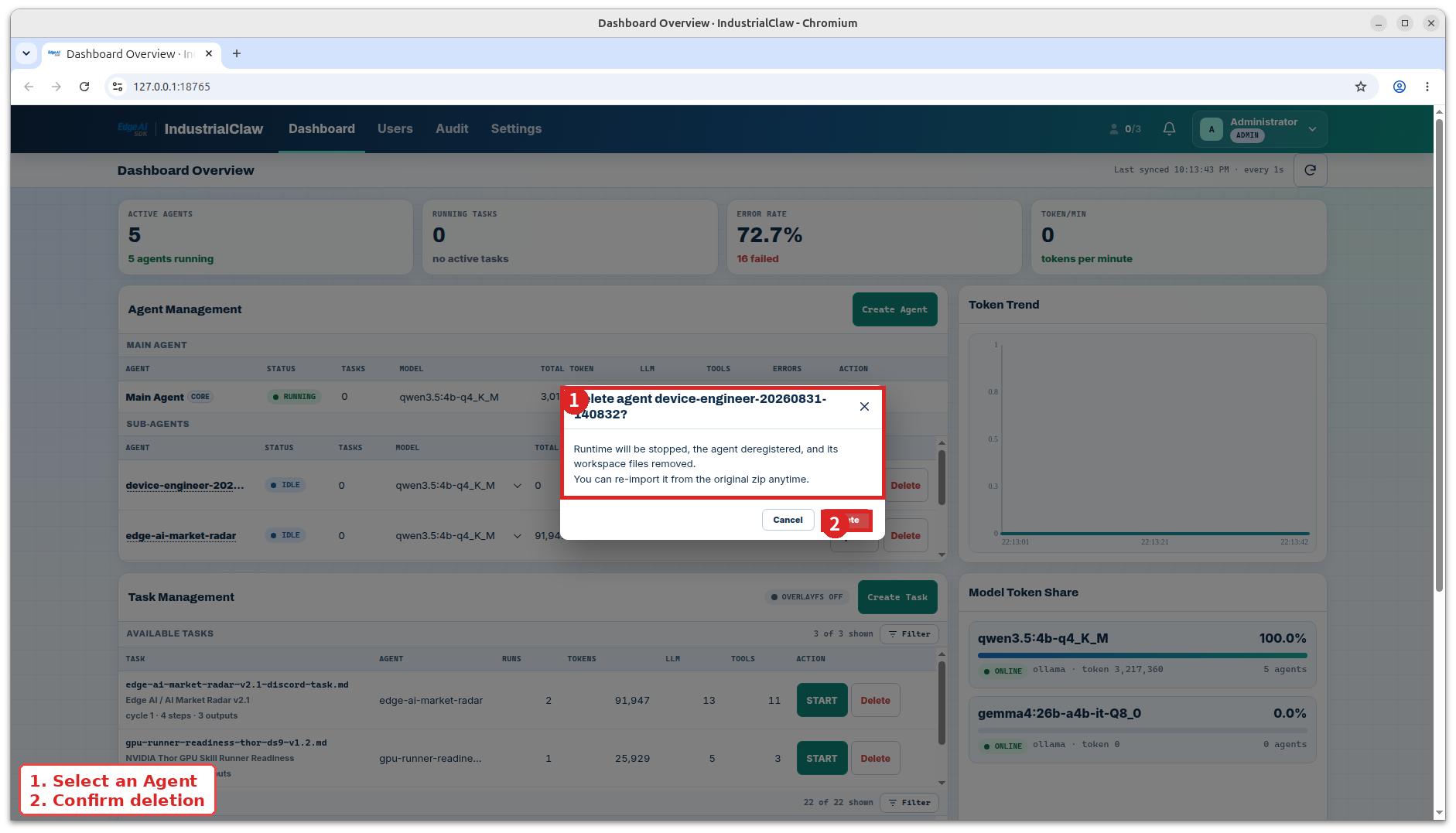
View confirm deletion
Deletion is permanent. It stops the Agent, removes its registration, and deletes the whole workspace—Task definitions, Materials, and Outputs with it. The original ZIP is unaffected and can be imported again. The Main Agent cannot be deleted.
Related documentation
- Agent Roles and Collaboration — Main Agent, Sub-agents, and file handoffs
- Build Your First Agent — the package format and what goes in an update
- Security Scanning Reference — every rule behind a scan result
- Tasks — giving a new Agent something to do