Models
Add a model
Models are registered on the device with setup_model.sh. Once registered, they can be assigned to an Agent from the Dashboard. Run these commands on the device; each one restarts the Gateway when it finishes.
cd /opt/Advantech/Agentic/app/openclaw/scripts
Model IDs are case-sensitive. Check the exact name on the model server before typing it.
On the device
The model runs on this device's own Ollama. Download it onto the device first.
./setup_model.sh local --auto-choice ollama \
  --customer-base-url "http://host.docker.internal:23951" \
  --customer-model-id "<model-id>"
--customer-base-url is the address as the containers see it, so a local engine must be written as host.docker.internal, never 127.0.0.1.
Remote server
The model runs on another server on the plant network.
Ollama on another device:
./setup_model.sh local --auto-choice ollama \
  --customer-base-url "http://<server-ip>:23951" \
  --customer-model-id "<model-id>"
vLLM or any other OpenAI-compatible model server:
./setup_model.sh custom \
  --custom-base-url "http://<server-ip>:8000/v1" \
  --custom-model-id "<model-id>"
Cloud
An OpenAI-compatible cloud API. Add --custom-api-key when it needs a key:
./setup_model.sh custom \
  --custom-base-url "https://<api-host>/v1" \
  --custom-model-id "<model-id>" \
  --custom-api-key "<api-key>"
GitHub Copilot. Obtain a GitHub OAuth token first; the models available follow that token's Copilot subscription:
./setup_model.sh copilot \
  --copilot-model-id "<model-id>" \
  --copilot-token "<github-token>"
Download a model
Only the local Ollama provides a way to download models; remote and cloud models are managed on their own servers.
Check the device has enough RAM, VRAM, and storage for the model first, and make sure IndustrialClaw is running—the desktop shortcut starts both it and the engine service.
Before downloading, confirm the Ollama service's API port matches the one in the commands. IndustrialClaw's Ollama listens on 23951 by default; if yours runs on another port (for example Ollama's own default, 11434), change it both in the command below and in --customer-base-url when you register the model. A version number in the reply means the port is right:
curl http://127.0.0.1:23951/api/version
Then download the model:
curl http://127.0.0.1:23951/api/pull \
  -H 'Content-Type: application/json' \
  -d '{"model":"<model-id>"}'
Once it is downloaded, register it as described under On the device.
To free the disk space of a model you no longer use, first unregister it as described under Remove a model, then delete it from Ollama:
curl -X DELETE http://127.0.0.1:23951/api/delete \
  -H 'Content-Type: application/json' \
  -d '{"model":"<model-id>"}'
Change an Agent's model in the Dashboard
Each Agent can use a different model registered on the device.
- Sign in as an Administrator.
- Find the Agent's Model field under Agent Management.
- Select the model name and pick from the models registered on this device.
- Confirm.
View: Change an Agent's model
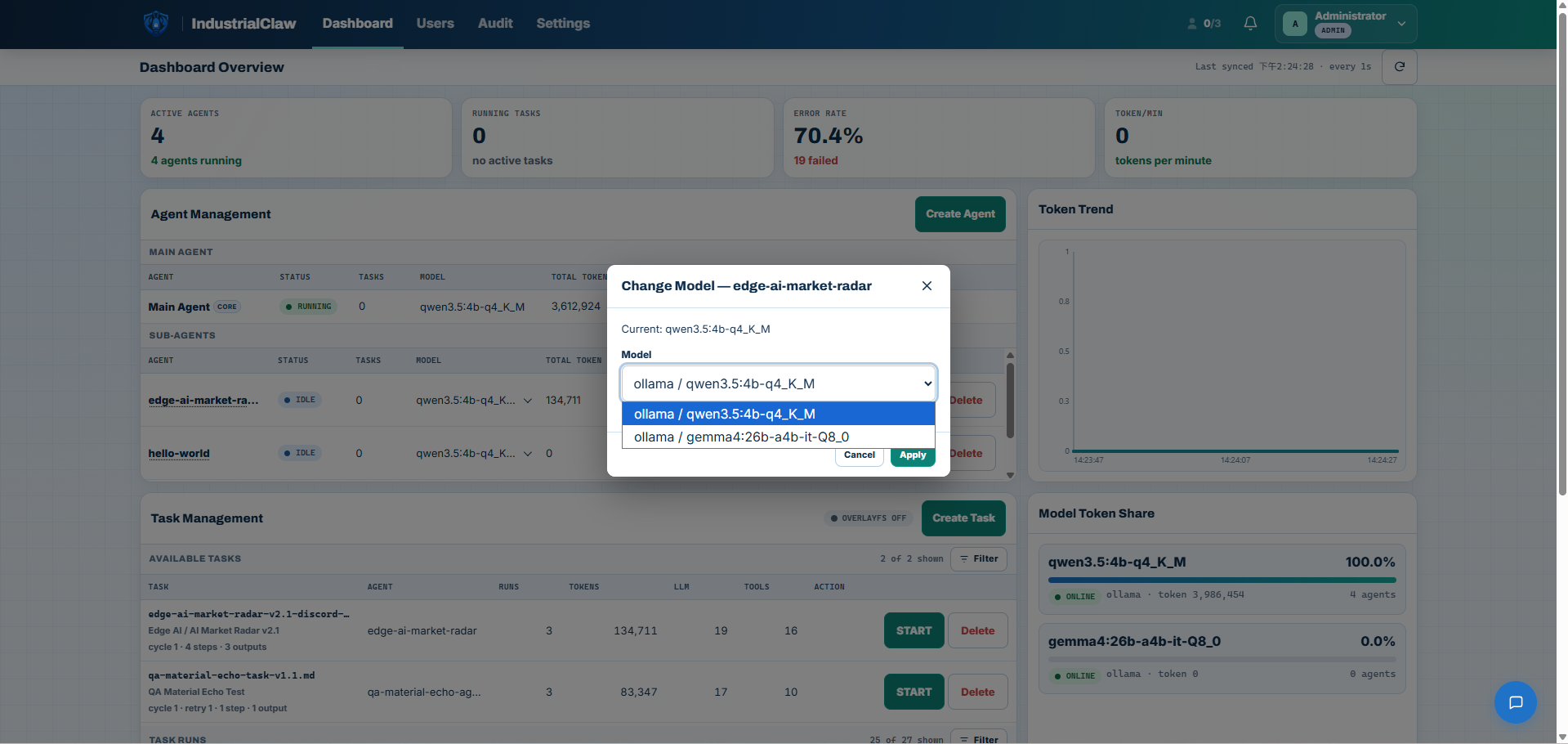
The new model applies to the next Task or Session. A run already in progress does not switch models halfway. A User cannot change models.
Remove a model
Move every Agent that uses the model onto another one first, then:
cd /opt/Advantech/Agentic/app/openclaw/scripts
./remove_model.sh ollama/<model-id>
Connection problems
Both services have to be running: IndustrialClaw itself, and the engine service that serves models on port 23951. Before changing any setting, check they are up:
docker ps -a
Look at the STATUS column—every container shows Up … when things are fine. Exited (…) means that service has stopped. Restart from the desktop shortcut; if the same one stops again, pass that whole line, including the name in the NAMES column, to whoever administers the device.
Related documentation
- System Requirements — the RAM and disk a local model needs
- Write for a small model — writing Skills a 4B model can follow